


Why Spec Sheets Feel Confusing (and Why It’s Worth 5 Minutes to Understand Them)
Open any laptop product page, and you’ll be met with a wall of numbers and abbreviations: 16GB, 512GB SSD, Intel Core Ultra 7, DDR5, 4800MHz. None of it is explained, and none of it is optional for properly comparing two laptops rather than guessing based on price.
This guide covers the three specifications that matter most for everyday performance: RAM, storage, and the processor. It won’t explain every line on a spec sheet; screens, battery life, and graphics cards sit outside this guide’s scope, but once you understand these three, you’ll be able to read almost any laptop listing with genuine confidence, not just for one purchase, but for every laptop comparison you make from here on.
RAM: Your Laptop’s Short-Term Memory
What RAM Actually Does
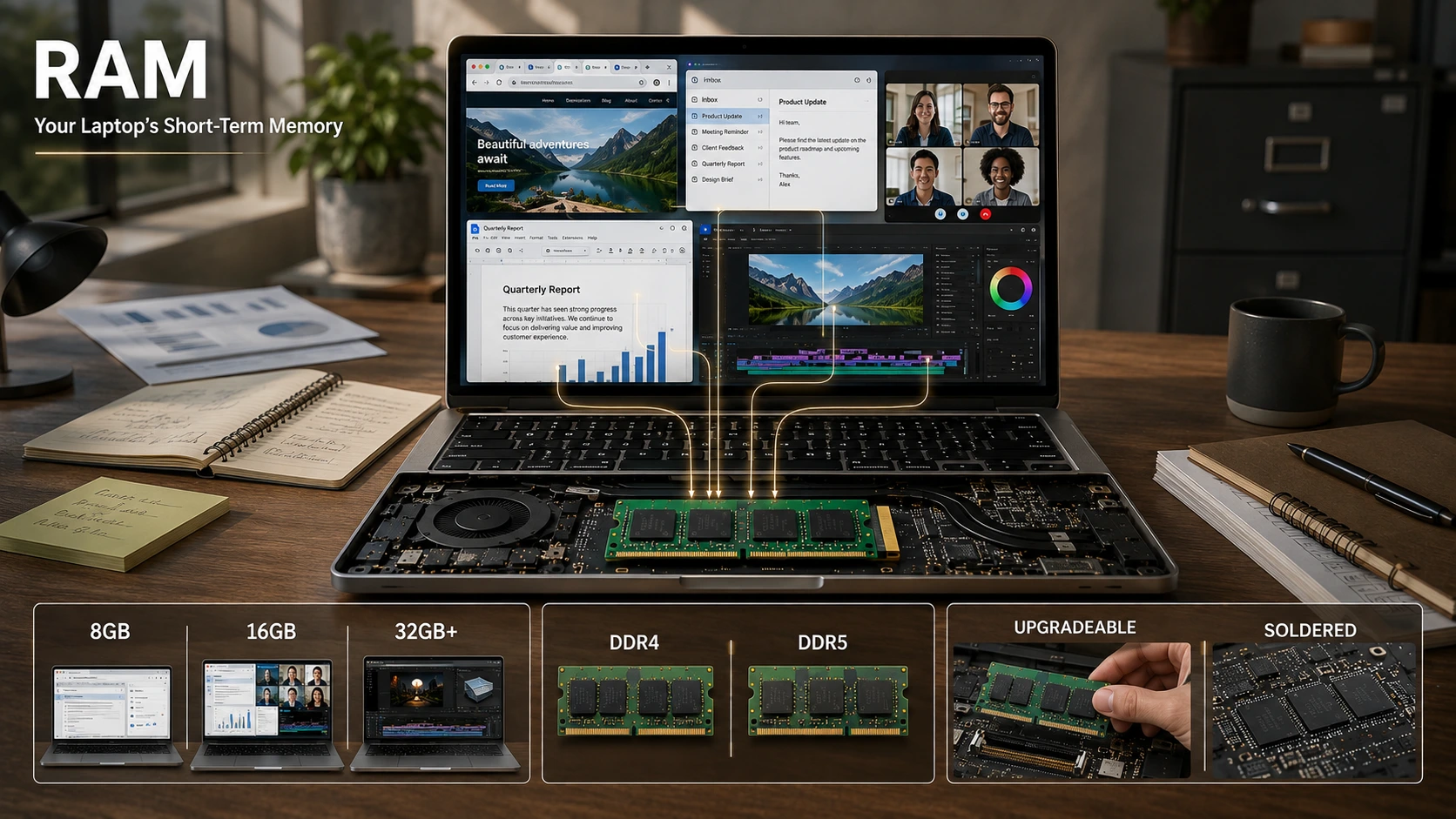
RAM (Random Access Memory) is your laptop’s active, short-term workspace. It holds whatever you’re currently using: open browser tabs, running applications, documents you’re editing. The moment you close a program or shut down, whatever was in RAM disappears.
This is the most common point of confusion for buyers: RAM is not where your files live permanently. That’s storage, covered in the next section. Think of RAM as a desk and storage as a filing cabinet. A bigger desk lets you have more things open and accessible at once; it doesn’t determine how many files you can keep long-term.
How Much RAM Do You Need?
RAM requirements depend entirely on how you use the laptop, and it’s more useful to think in tiers than to chase a single “correct” number. As a general guide, around 8GB is suitable for light use such as browsing, email, and document editing. Around 16GB is a comfortable mid-range for multitasking, video calls, and moderate workloads, and is increasingly treated as the practical starting point for most buyers rather than a luxury. 32GB or higher is aimed at heavier work such as video editing, 3D rendering, or running multiple demanding applications simultaneously.
These figures shift over time as software and operating systems become more memory-hungry, so treat them as a current guide rather than a fixed rule, and check a recent source if you’re reading this some years after publication.
RAM Speed and Type (DDR4 vs. DDR5): Do They Matter?
Alongside capacity, you’ll see a generation label like DDR4 or DDR5, sometimes followed by a MHz figure. DDR5 is the newer standard and offers higher bandwidth and improved power efficiency over DDR4. In practical terms, this difference is most noticeable in memory-intensive tasks like video editing or working with very large files. For everyday browsing, office work, and streaming, the difference between DDR4 and DDR5 is rarely something you’ll consciously feel. It’s worth knowing which generation a laptop uses, but it shouldn’t be the deciding factor unless your workload is genuinely demanding.
Soldered vs. Upgradeable RAM
This is a detail many buyers overlook until it’s too late: some laptops let you add more RAM later, while others have it soldered directly onto the motherboard, meaning whatever capacity you buy is what you’re stuck with for the life of the device. Thinner, more compact laptops are more likely to use soldered RAM. If you’re buying a laptop and expect your needs to grow, it’s worth checking whether RAM is upgradeable before you commit, particularly if you’re tempted to save money now by choosing a lower capacity.
Storage: Where Your Files Live Permanently
HDD vs. SSD: The Single Biggest Storage Decision
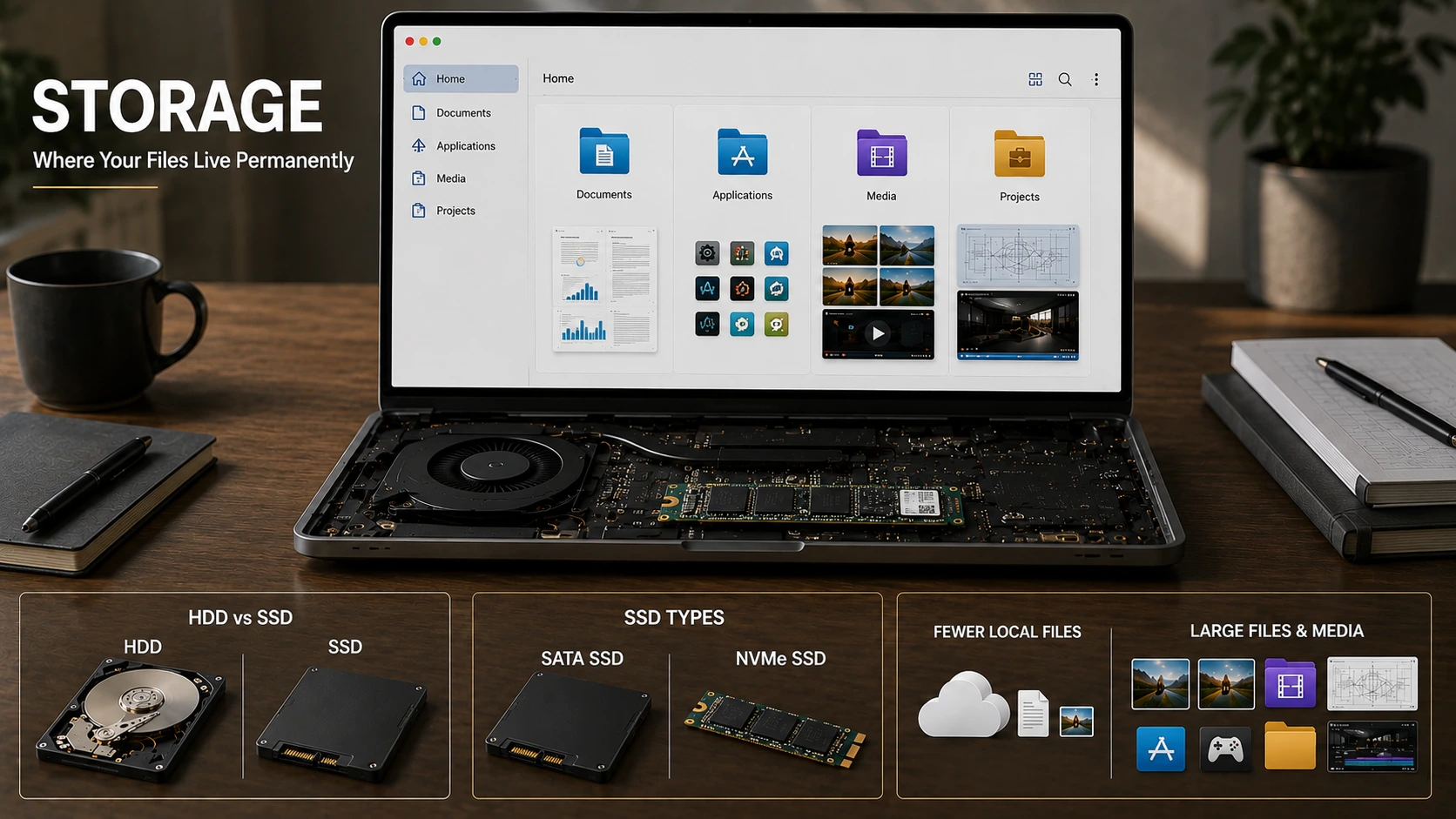
Storage is where your files, applications, and operating system live permanently, even when the laptop is switched off. The most consequential storage decision is HDD versus SSD. A hard disk drive (HDD) uses spinning magnetic platters and is slower, louder, and more prone to mechanical wear. A solid-state drive (SSD) uses flash memory with no moving parts, making it significantly faster, quieter, and more durable. This single choice affects daily experience more than almost any other spec on the sheet, from how quickly your laptop starts up to how responsive it feels opening files.
SSD Types: SATA vs. NVMe
Not all SSDs are equal. SATA SSDs use an older interface originally designed for hard drives, while NVMe SSDs use a newer protocol built specifically for flash storage, offering considerably higher speeds. For everyday tasks like browsing, office work, and general use, the difference between SATA and NVMe is often marginal and hard to notice. It becomes meaningful for tasks involving very large files, such as video editing or working with large datasets, where the extra speed genuinely saves time. For most buyers, simply having an SSD (of either type) matters far more than which SSD type it is.
How Much Storage Capacity Do You Actually Need?
Capacity needs depend heavily on habits rather than a single fixed number. If you rely mostly on cloud storage and streaming services and keep relatively few files locally, a smaller capacity may suffice. If you keep a large media library, install several substantial applications, or work with large project files locally, you’ll want considerably more headroom. Rather than asking “how much storage is standard,” it’s more useful to ask how you currently use your existing laptop’s storage and whether you’re regularly running short.
Processor (CPU): The Component That Sets the Ceiling

Reading Processor Names: Intel Core i3–i9 and AMD Ryzen 3–9
Processor names look intimidating but follow a logical structure once broken down. Intel’s traditional lineup runs from Core i3 up to Core i9, with higher numbers indicating a higher performance tier. Intel has more recently shifted this naming, dropping the “i” for many current chips in favour of Core 3, Core 5, Core 7, and Core 9, alongside a separate premium Core Ultra range, so you may see either naming style depending on when the laptop was released. AMD’s equivalent lineup runs from Ryzen 3 through Ryzen 9, following the same logic: a higher tier number generally signals more processing power. In both cases, the tier number gives you a rough performance class, not a precise, guaranteed ranking against every other chip.
Why Generation Matters as Much as the Tier Number
This is a common and costly misconception: a higher tier number doesn’t automatically mean a faster chip. A newer, mid-tier processor can genuinely outperform an older, higher-tier one, because processor architecture improves with each generation. An older Core i7 is not necessarily faster than a newer Core i5. Alongside the tier number, check the generation or series indicator (often a set of digits within the full model name) to understand roughly how recent the underlying architecture is, rather than relying on the tier label alone.
Cores, Threads and Clock Speed
A few more terms appear alongside the processor name. Cores are effectively independent processing units within the chip; more cores generally means better performance when running several demanding tasks at once. Threads relate to how many tasks each core can juggle simultaneously, improving multitasking efficiency. Clock speed, measured in GHz, indicates how quickly the processor executes instructions; higher values generally mean faster for a given architecture, though it isn’t directly comparable across different processor generations or brands. In plain terms, cores and threads matter most for multitasking and background workloads, while clock speed matters most for raw single-task speed.
How RAM, Storage and Processor Work Together
None of these three specs works in isolation, and this insight turns spec-reading from memorising numbers into genuine understanding: a laptop is only as fast as its weakest significant component. A powerful processor paired with an old-fashioned HDD will still feel sluggish, because the processor spends much of its time waiting on the slow drive to deliver data. Similarly, generous RAM can’t compensate for a genuinely underpowered processor when running demanding software. This is often called a bottleneck: the component holding back the rest of the system. When comparing laptops, it’s worth checking whether all three specs are reasonably balanced for your needs, rather than judging the laptop on whichever single number stands out on the box.
Matching Specs to How You’ll Actually Use the Laptop
Everyday Use: Browsing, Documents, Streaming
For everyday use, RAM capacity and having an SSD (rather than an HDD) tend to matter more than chasing a top-tier processor, since browsing and document work rarely stress the CPU heavily.
Study or Office Work: Multitasking and Video Calls
For study and office work, where multiple applications, browser tabs, and video calls often run simultaneously, RAM becomes the specification most worth prioritising, alongside a mid-tier processor.
Creative or Technical Work: Editing, Programming, Design
For creative or technical work such as video editing, programming, or design software, the processor and storage speed (favouring NVMe) tend to matter most, often alongside higher RAM capacity than everyday use requires.
A Note on Newer Spec-Sheet Terms: NPU, TOPS and “AI PC” Labels
You may increasingly see terms like NPU, TOPS, or “Copilot+ PC” on newer spec sheets. An NPU (Neural Processing Unit) is a dedicated chip designed specifically to handle AI-related tasks efficiently, separate from the main processor. TOPS (trillion operations per second) is a measure of that chip’s AI processing capability. Microsoft’s current Copilot+ PC designation requires an NPU rated at 40 or more TOPS, alongside a minimum of 16GB of RAM and 256GB of storage, to unlock certain on-device AI features.
For most buyers, these figures matter less day-to-day than the RAM, storage, and processor fundamentals covered above, unless you specifically plan to use on-device AI features tied to this hardware. As with all rapidly evolving specifications, check the manufacturer’s current documentation for the latest thresholds before treating any figure as fixed.
Putting It Into Practice: Reading a Real Spec Sheet
Here’s how the concepts above apply to a typical listing. The table below breaks down a generic example spec sheet line by line.
| Spec sheet entry | What it tells you |
| 16GB DDR5 RAM | Comfortable mid-range capacity, newer memory generation with better bandwidth and efficiency than DDR4 |
| 512GB NVMe SSD | Fast storage interface, capacity suited to a mix of local files and cloud reliance |
| Intel Core Ultra 7 (Series 2) | Upper-mid performance tier, recent generation architecture |
| NPU: 45 TOPS | Meets current Copilot+ PC AI hardware threshold |
| RAM: Soldered | Not upgradeable after purchase, capacity choice is final |
Reading it this way, rather than glancing at the headline numbers alone, tells you far more: this is a well-balanced, reasonably current laptop, but the soldered RAM means the buyer needs to be confident that 16GB will remain sufficient in the long term. Spec sheets on individual laptop product pages, including ABEX’s, typically list RAM, storage, and processor details in this same format, which is a useful reference point when comparing listings side by side.
Beyond RAM, Storage and Processor
RAM, storage, and processor form the foundation of laptop performance, but they’re not the whole picture. Display quality, battery life, graphics performance (GPU), and the range of available ports all affect the overall buying decision and daily experience. These sit outside the scope of this guide, but they’re worth researching separately once you’re confident reading the three specs covered here.
Conclusion
RAM, storage, and processor aren’t isolated numbers to compare in a vacuum; they work together as a system, and understanding how they interact is what turns a confusing spec sheet into a confident comparison. A laptop with a strong processor but a slow drive, or generous RAM paired with an underpowered chip, will underperform compared to its individual specs. Next time you’re comparing laptops, look at all three together, consider how they match your actual use case, and check whether any one component is likely to hold the others back.