

Playing Well Isn’t the Same as Streaming Well
A laptop that runs your favourite game smoothly can still struggle the moment you press “Go Live”. That surprises many new streamers. Frame rate tells you how well the laptop draws the game. It says nothing about the extra work streaming adds: encoding video, running overlays, handling chat, and recording footage, all at once.
This guide is written for two readers. The first is a gamer wondering whether their current laptop can handle streaming. The second is someone choosing a new one. If you’re wondering what the best laptop specs for streaming are, the honest answer starts with the workload, so we’ll begin there.
What Streaming Adds to Your Laptop’s Workload
Three Jobs Running at Once
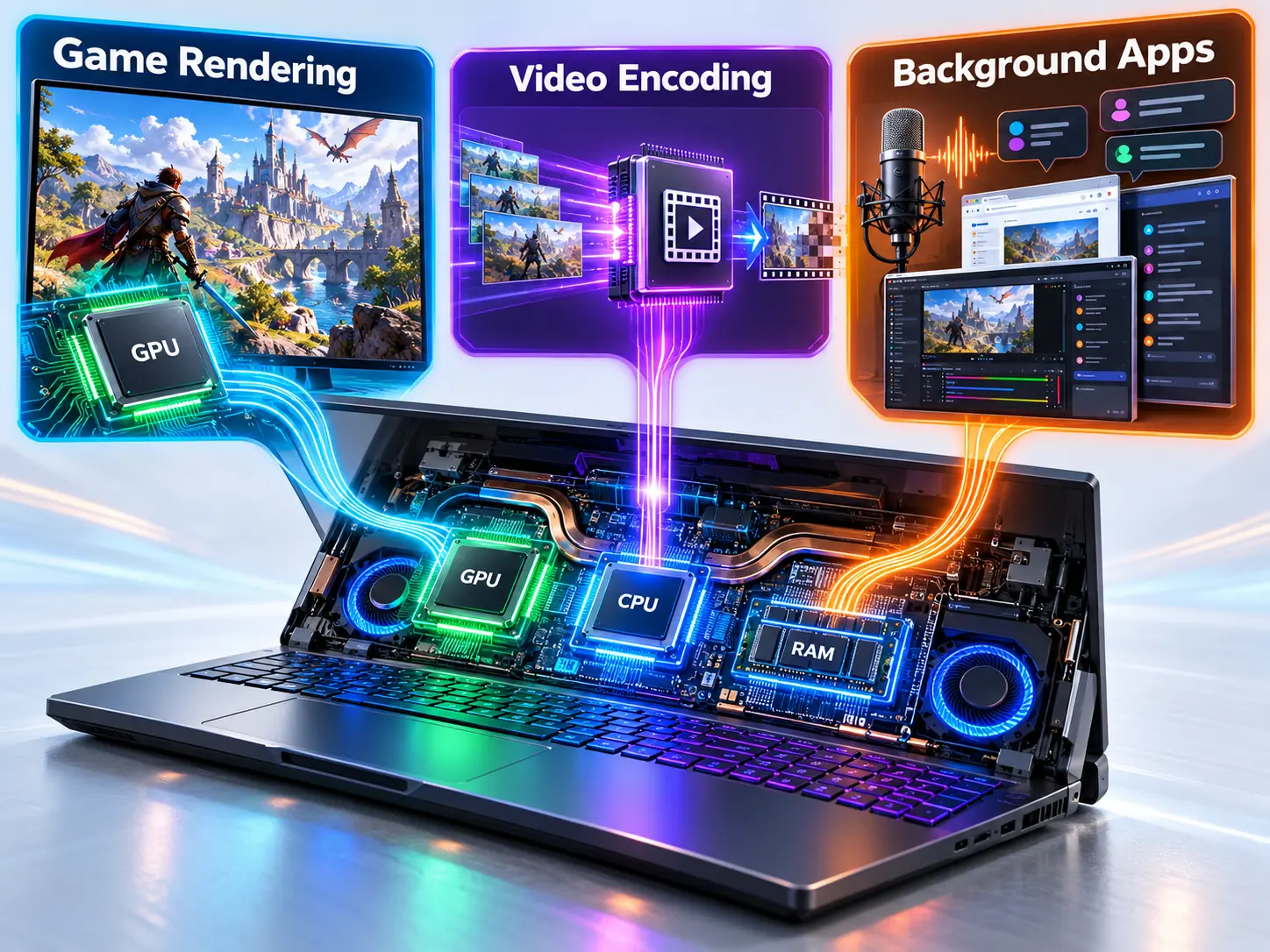
Think of streaming as three jobs sharing one machine. The first is rendering the game itself. The second is encoding: compressing the game’s video so it can be sent over the internet. The third is everything else, including broadcast software such as OBS Studio, a browser for chat, voice apps and any overlays.
This is why a laptop can feel fine while gaming and then stutter once a stream starts. The game’s demands haven’t changed, but two more jobs now compete for the same GPU, processor, memory, and cooling.
Hardware vs. Software Encoding
An encoder turns raw video frames into a compressed stream. It can run in two places. Software encoding (commonly x264) uses the processor. Hardware encoding uses a dedicated encoder built into the graphics chip, such as NVIDIA’s NVENC, AMD’s AMF or Intel’s Quick Sync.
OBS’s documentation notes that hardware encoders take the workload off the CPU and that modern ones deliver very good video quality with minimal performance impact, while earlier-generation versions produce lower-quality images. That matters on a laptop, where the processor is already sharing a limited thermal budget with the GPU. Support varies by GPU family and generation, and some older or entry-level laptop GPUs lack a hardware encoder entirely, so check NVIDIA’s encode support matrix or the equivalent AMD and Intel documentation for the exact chip.
Live Streaming vs. Recording vs. Editing
These are three different workloads, and the content-creation half of this article lives mostly in the second and third.
| Workload | What it demands | Specs that matter most |
| Live streaming | Real-time encoding and a steady upload | GPU encoder, processor headroom, cooling, internet connection |
| Recording | Writing large files continuously over a long session | Storage speed and capacity, sustained performance |
| Editing afterwards | Heavy, sometimes long-running processing of footage | Processor cores, RAM, storage, sometimes display quality |
Many creators do all three, so one weak link, like a small drive or a laptop that overheats, can limit the whole workflow.
The Specs That Matter, and Why
If you need a refresher on what each component does, our guide to RAM, storage and processor covers the basics. Here we look at each one through a streaming lens.
Graphics: Encoder Capability and Power Limits, Not Just Frame Rates
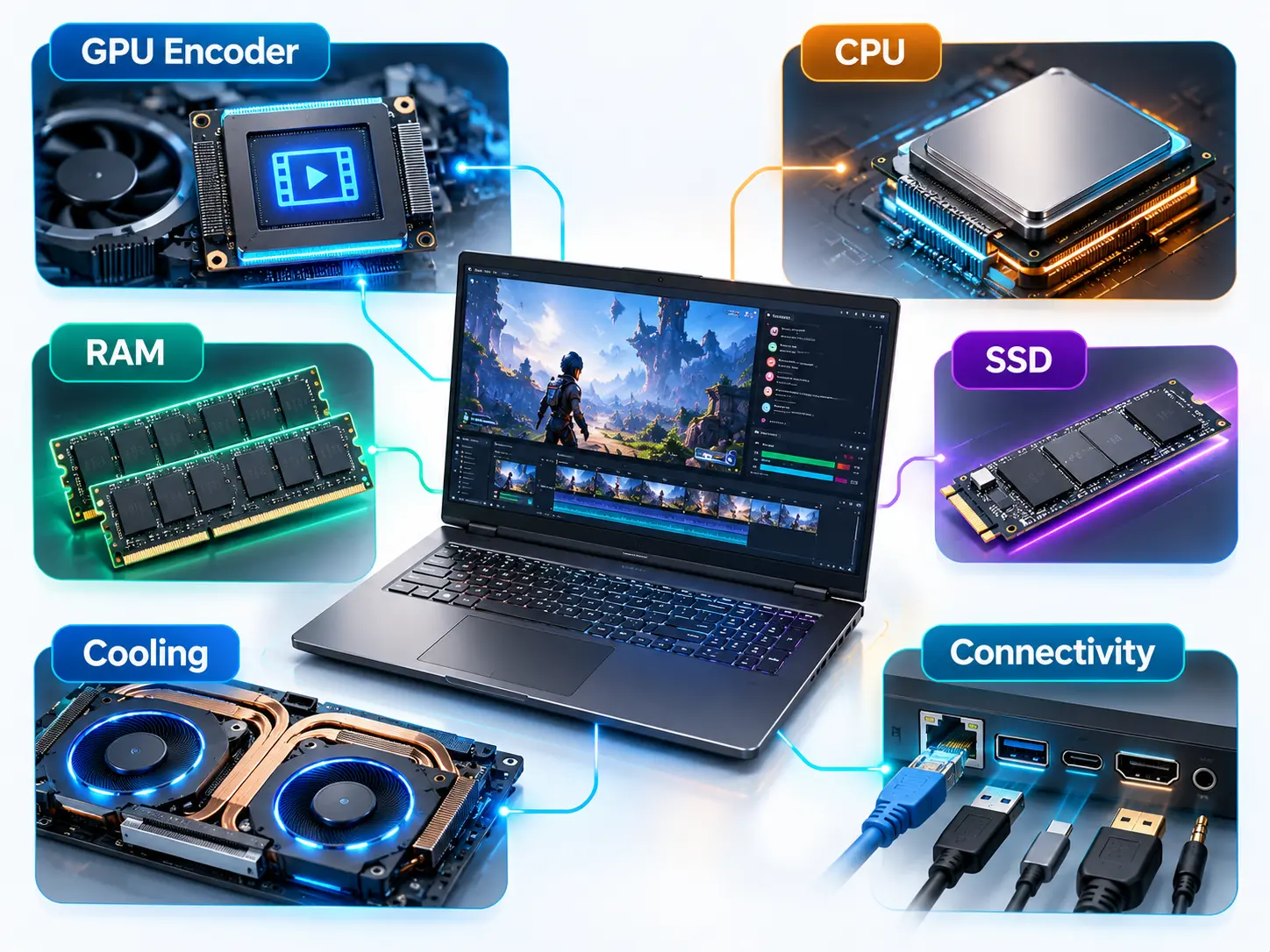
For streaming, the GPU’s encoder matters nearly as much as its gaming performance. A GPU with a capable, current-generation encoder can handle the stream while the game runs, whereas one without it pushes the job onto the processor.
There’s a second catch. The same GPU name can perform differently in different laptops, because manufacturers set how much power the GPU may draw. A slim laptop and a thicker one can both list the same GPU yet deliver noticeably different sustained performance. A listing’s GPU name alone therefore doesn’t tell the whole story. Look for the Total Graphics Power (TGP) rating, which is the power budget the manufacturer gives the GPU, or for independent tests of the exact model.
Processor: Cores, Threads and Sustained Performance
Streaming is multitasking, so a processor with more cores and threads generally handles it better when the game, broadcast software, and background apps run together. Just as important is how well the laptop holds its performance over a long session. A processor that boosts high for a minute and then throttles will serve you worse than one that stays steady for hours.
RAM: Headroom for Everything Running Alongside the Game
When memory runs short, the system starts shuffling data to storage, resulting in stutter and dropped frames. Streaming needs more headroom than gaming alone because broadcast software, a browser and voice apps all hold memory too.
Recommendations differ between sources, so treat any figure as a range tied to your workload. 16GB is commonly cited as a workable starting point, with 32GB giving more room for heavier scenes or regular editing, but figures vary. Two details are worth checking on a listing: whether the memory runs in dual-channel (two matched modules, which can improve performance) and whether the RAM is upgradeable or soldered.
Storage: Recordings, Clips and Game Libraries
A fast SSD helps with recording, loading games, and editing projects. Capacity disappears quickly once you save recordings, clips and a growing game library. Plan for more than you think you need, and consider an external drive for archiving older footage so your main drive stays free.
Cooling and Sustained Performance
Long sessions, where the game and the encoder both push the system, are exactly where thermal throttling appears. When temperatures climb, the laptop lowers its speed to protect itself, and you notice it as dropped frames or a falling frame rate.
Singapore’s consistently warm ambient temperatures can make this more noticeable. Good airflow, a hard, flat surface, and a cooling stand can help, but treat them as modest aids rather than fixes for a laptop whose cooling can’t keep up with its components.
Ports and Connectivity
These are easy to overlook on a spec sheet and awkward to fix later. Check for a wired Ethernet port (or plan for an adapter), enough USB ports for a webcam, microphone and capture card, and Thunderbolt-class or similar high-speed ports if you want fast external storage or additional displays.
Your Internet Connection Is Part of the Spec Sheet
Your upload speed and connection stability affect stream quality as much as the laptop does. Streaming sends video out, so the upload figure is the one to check, and some plans advertise only a single headline speed. A powerful laptop can’t compensate for an upload that drops out.
Wired connections are generally more reliable than Wi-Fi for streaming, which is why the Ethernet port above matters. Your upload also needs to sit comfortably above your chosen bitrate, with room to spare. Each platform publishes its own recommended settings, and these change, so check the platform’s current documentation before choosing a bitrate. Upload speeds vary by plan and provider, so confirm yours with your internet provider.
Can the Gaming Laptop You Already Own Handle Streaming?
You may not need new hardware at all. Testing first costs nothing.
How to Test Before You Spend Anything
Run a private test stream or local recording long enough for the laptop to reach normal operating temperature, not just a few minutes. While you play, watch CPU, GPU and temperature, and check OBS’s stats panel for skipped and dropped frames. A message like “Encoding overloaded” appears when the encoder can’t keep up, pointing to the settings below.
Settings That Reduce the Load
Several settings can make an existing laptop workable. OBS’s troubleshooting guide recommends capping the game’s frame rate, lowering the game’s graphics settings, reducing the output resolution or frame rate, and building simpler scenes. It also notes that browser sources, often used for chat and animated overlays, can use significant resources.
Switching from software to hardware encoding, where your GPU supports it, is another common lever. Confirm current guidance in the broadcast software’s official documentation, as options and defaults change between versions.
What Can and Can’t Be Upgraded on a Laptop
On most laptops, you can’t change the GPU or processor. RAM and storage sometimes can, but only where the model supports it, and this varies by model, so check the specific documentation rather than assuming. If the GPU encoder or processor is your bottleneck, an upgrade won’t fix it. If it’s memory or storage, it might.
Matching Specs to Your Stage as a Creator
Starting Out: Casual Streaming and Light Content
If you stream occasionally at modest settings, a current-generation hardware encoder, a sensible amount of RAM, and a stable connection get you most of the way. Beyond that point, extra spending usually gives viewers little visible benefit.
A Growing Channel: Heavier Scenes, Higher Quality, Regular Editing
As you add more sources, higher-quality settings, and regular editing, you’ll want more memory and a stronger processor. Storage capacity also starts to matter as recordings accumulate.
Production-Heavy Work: Where a Laptop’s Ceiling Shows
Even a powerful laptop has limits for demanding, long-running or multi-source production. Some creators eventually separate their setups, for example, using a second machine for streaming or editing. That’s a decision for later, and not a sign you’ve chosen badly.
Checking Specs Before You Buy
On a product listing, verify the GPU, RAM, storage and ports. Then look for what listings often leave out: whether RAM is upgradeable and what power the GPU can draw, both of which you should confirm against the model’s documentation. Listings on ABEX’s gaming laptop pages show the core specifications; confirm the remaining details separately.
Conclusion
Streaming is a different workload from gaming. The GPU encoder, processor, memory, cooling, ports and your connection all matter alongside frame rates, and a weakness in any one can show up on stream.
Before spending anything, test the laptop you already own and use the settings that reduce the load. If you do buy, match the specs to your actual channel rather than to the biggest numbers on the page.