

If your laptop drains faster than it used to, or shuts down before reaching zero, the cause is almost always habits, not hardware failure. Here are 10 science-backed ways to protect your battery’s runtime and long-term capacity.
When Your Laptop Battery Becomes the Problem

The Moment Every Laptop User Dreads: And Why It Keeps Happening
You are mid-deadline or mid-flight, and your laptop cuts out with 20% showing. Or a machine that once lasted eight hours barely reaches four. These are predictable outcomes, the result of habits most users never question.
Battery Life vs Battery Health: Two Different Problems, One Device
What “Battery Life” Actually Measures
Battery life is runtime per charge; it shifts daily based on workload, brightness, and background processes running on your system.
What “Battery Health” Tells You That Battery Life Doesn’t
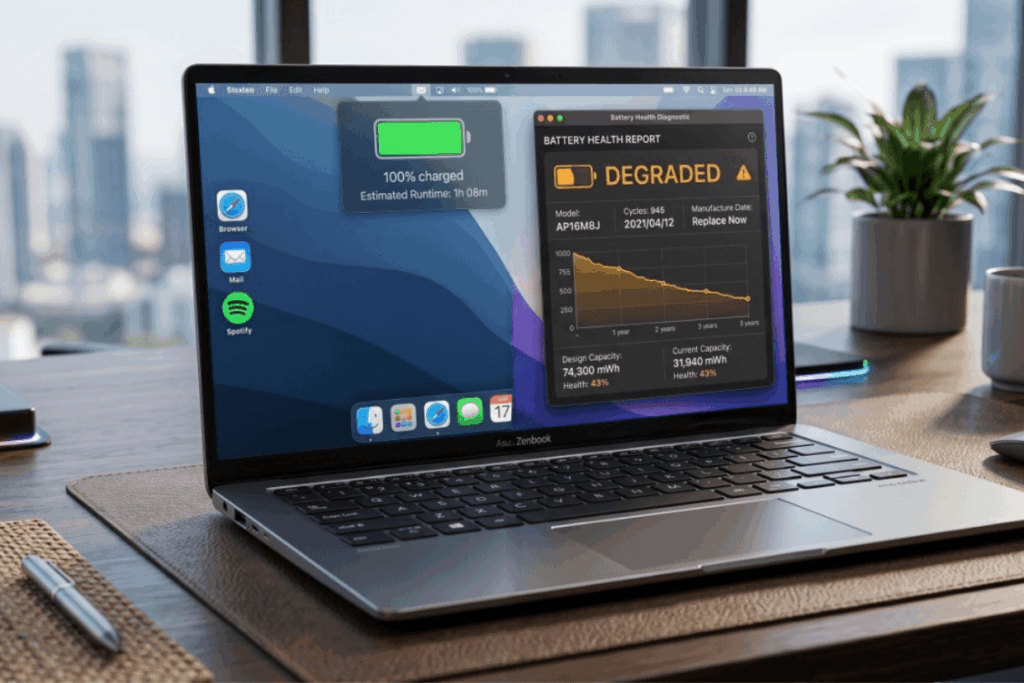
Battery health measures how much of your battery’s original maximum capacity remains. Most lithium-ion laptop batteries begin degrading meaningfully between 300 and 500 full charge cycles, after which capacity can fall to 80% or below, turning an eight-hour device into a six-hour one.
How Fast Do Laptop Batteries Actually Degrade? (Real-World Expectations)
Most batteries lose roughly 2–4% of capacity per 100 charge cycles, but heat and aggressive charging can compress three years of degradation into twelve months, a particular concern in Singapore, where indoor temperatures regularly reach 31–33°C.
Understanding Why Laptop Batteries Deteriorate
The Science Behind Lithium-Ion Battery Degradation (Simplified)
What a Charge Cycle Is: and Why It Matters
Charging from 50% to 100% twice counts as one complete cycle, not a single 0–100% top-up. Peer-reviewed research published in Physical Chemistry Chemical Physics identifies temperature and cycle stress as the two primary drivers of lithium-ion capacity loss.
How Capacity Loss Accumulates Over Time
Each cycle causes irreversible structural changes to the battery’s electrodes. These changes compound over hundreds of cycles, permanently reducing how much charge the battery can store.
The Four Primary Causes of Premature Battery Degradation
Sustained Heat Exposure
Operating above 35°C accelerates electrolyte breakdown inside battery cells. In Singapore, a laptop on a soft surface with blocked vents can breach this threshold within minutes.
Deep Discharge and Chronic Overcharging
Draining to 0% regularly stresses lithium-ion chemistry. Staying at 100% charge while running hot combines high-voltage stress with elevated temperature, both of which degrade the battery.
Heavy Processor and GPU Loads
Gaming, rendering, and machine learning push power draw to maximum, generating sustained heat alongside rapid discharge, the worst combination for battery longevity.
Background Software Drain You Don’t Notice
Sync services, cloud backup, and auto-update processes account for 10–25% of total battery draw during light use, power consumed with no benefit to your actual work.
How Much Battery Degradation Is Normal After 1, 2, and 3 Years?
A realistic benchmark: 5–10% loss after year one, 15–20% after year two, and up to 30% after year three, determined almost entirely by daily habits.
10 Proven Ways to Extend Your Laptop Battery Life & Health
1. Adjust Screen Brightness, The Highest-Impact Quick Win
What Brightness Level Actually Saves Power?
The display is the single largest power consumer on most laptops. Reducing brightness from 100% to 50% cuts screen draw by 30–40%.
Auto-Brightness vs Manual Control: Which Works Better?
A fixed manual setting at 40–60% delivers more consistent savings than auto-brightness, which often overshoots indoors.
2. Choose the Right Power Plan for the Right Task
Balanced, Power Saver, and High Performance: When to Use Each
High Performance keeps your CPU at peak speeds regardless of actual demand, wasteful for email or documents. Use Balanced for everyday work; Power Saver during travel.
Custom Power Plans: Worth the Setup?
Capping CPU performance at 80% during passive sessions delivers measurable savings with zero impact on typical productivity.
3. Audit and Limit Background Processes
How to Identify Apps Secretly Draining Your Battery
Windows: Settings > System > Battery shows per-app consumption over the past week. macOS: Energy Impact in Activity Monitor reveals the same.
Startup Programs: The Hidden Battery Drain Most Users Ignore
Every unnecessary startup app consumes power before you open a single tab; disabling them improves battery life and boot speed with no trade-off.
4. Control Heat: Your Battery’s Biggest Long-Term Threat
Surface, Ventilation, and Usage Environment Best Practices
Always use your laptop on hard, flat surfaces. In Singapore’s ambient heat, even partially blocking air vents raises internal temperatures to damaging levels quickly.
Cooling Pads: Do They Actually Help Battery Health?
An active cooling pad reduces chassis temperature by 3–8°C under load, which is meaningful for users who do regular heavy work on a battery.
5. Practice Smarter Charging Habits (The 20–80% Rule Explained)
Why Partial Charging Extends Battery Lifespan
Keeping the charge between 20% and 80% reduces the electrochemical stress applied per cycle. Battery University’s research on prolonging lithium-based batteries shows that every 0.10V drop below full charge voltage doubles cycle count, meaning partial charging to 80% significantly extends usable battery lifespan.
Is It Really Harmful to Leave Your Laptop Plugged In Overnight?
An idle laptop plugged in overnight poses low risk; modern charge controllers stop at full charge. The real problem is charging under heavy load, where high voltage and heat combine.
6. Use Built-In Battery Saver and Adaptive Charging Features
How Windows Battery Saver and macOS Low Power Mode Work
Both modes reduce background activity and throttle performance below a set threshold, extending runtime by 15–25% without any manual decision required.
Manufacturer-Specific Charging Limiters and What They Do
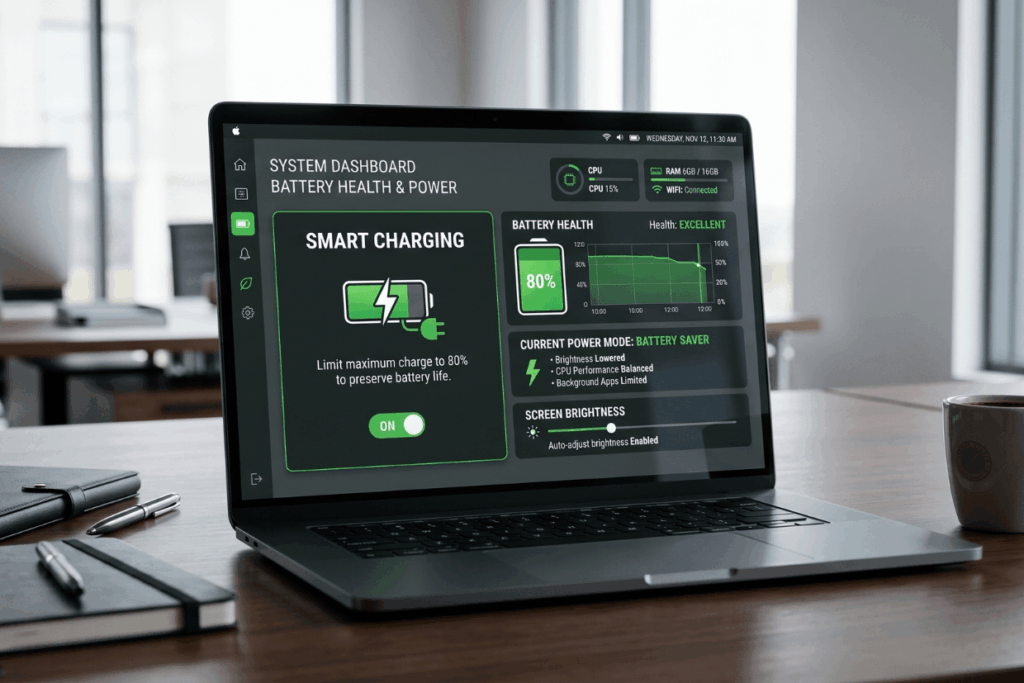
Many modern laptops include firmware charge limiters that cap the battery at 80% automatically, enabling this to apply the partial-charging principle passively every day.
7. Manage Wireless Radios and Peripheral Connections
The Real Drain Cost of Wi-Fi, Bluetooth, and USB Devices
| Component | Approximate Power Draw | When to Disable |
| Wi-Fi | 1–3W (active) | Offline work or airplane mode |
| Bluetooth | 0.5–1.5W | No Bluetooth devices in use |
| USB peripherals | 0.5–2.5W per device | Passive reading or writing |
| Backlit keyboard | 0.5–1W | Well-lit environments |
When to Disable What: A Practical Decision Guide
If you are not actively using it, disable it, turning off unused radios and peripherals adds 30–45 minutes of runtime on a typical workday.
8. Keep Drivers, Firmware, and OS Updated
How Software Updates Improve Battery Efficiency
Chipset and power management driver updates include efficiency optimisations that reduce idle consumption. Intel’s documentation confirms how driver-level changes translate into real battery gains.
Common Update Mistakes That Actually Worsen Battery Performance
Always run major OS updates on mains power; they spike CPU usage for extended periods and rapidly deplete battery charge.
9. Monitor and Calibrate Your Battery Health Regularly
How to Check Battery Health on Windows and macOS
Windows: run powercfg /batteryreport in Command Prompt to compare current versus original design capacity. macOS: hold Option and click the battery icon.
What Battery Calibration Is, and When It’s Worth Doing
Calibration corrects the charge controller’s capacity readings, not lost capacity. Do it once or twice a year if readings seem erratic.
10. Store Your Laptop Correctly During Extended Downtime
Ideal Charge Level and Temperature for Long-Term Storage
For storage beyond two weeks, charge to approximately 50% and keep the device below 20°C in a dry environment. In Singapore’s humidity, a dry cabinet is preferable to a non-climate-controlled bag or drawer.
What Happens to a Battery Left Uncharged for Months?
Lithium-ion batteries self-discharge at 1–2% per month; a fully depleted battery left for months may enter a deep discharge state. Top up stored devices every two to three months.
Laptop Battery Myths That Are Actually Hurting Your Device

One more layer worth addressing: the myths that actively work against everything above.
Myth 1: You Should Drain Your Battery to 0% Before Recharging
Lithium-ion cells have no memory effect, requiring full discharge; this is nickel-cadmium era advice. Deep discharges actively harm them.
Myth 2: Keeping Your Laptop Always Plugged In Is Perfectly Fine
Staying plugged in during resource-intensive workloads keeps the battery at 100% under thermal stress, a slow but consistent source of degradation.
Myth 3: Fast Charging Doesn’t Damage Batteries
Fast charging generates significantly more heat than standard charging, accelerating lithium plating, a documented mechanism of capacity loss. Occasional use is fine; daily reliance adds measurable wear.
Myth 4: Closing Apps Always Saves Battery (It’s More Complicated)
The real drain comes from apps actively processing in the background, syncing, indexing, or updating, regardless of whether their window is visible on screen.
When Battery Tips Are No Longer Enough: Knowing When to Replace
Warning Signs Your Laptop Battery Needs Replacing
Sudden Shutdowns at 20–30% Charge
The battery has degraded so far that the charge controller can no longer predict when power will run out.
Significantly Reduced Runtime Despite Full Charge
If the runtime has dropped below 50% of the original specification, replacement is worth considering; a new battery costs far less than a new device.
Swelling or Physical Deformity (a Safety Concern, Not Just a Performance Issue)
A swollen battery signals dangerous internal gas buildup. Stop using the device immediately and take it to an authorised service centre.
OEM vs Third-Party Replacement Batteries: What to Consider
OEM batteries are tested for system compatibility. Third-party options vary in quality, prioritise suppliers with verifiable specifications and warranty terms. In Singapore, the Consumer Protection (Fair Trading) Act covers replacement hardware purchases from retailers.
DIY Replacement vvsProfessional Service: Risks and Practicalities
Thin-and-light models often use glued batteries requiring specialist tools to access, forcing a DIY replacement risks cracking the display or damaging the motherboard. Check repairability ratings first.
Choosing a Laptop With Battery Longevity Built In
What Battery Specifications Actually Predict Real-World Life
Watt-Hours (Wh) vs Manufacturer-Claimed Hours: The Gap Explained
Manufacturer claims are measured under optimised, low-load conditions; real-world life runs 25–40% below the stated figure. Watt-hours (Wh) is the more reliable metric: a 72Wh battery will outlast a 50Wh battery regardless of the hour claims on the box.
How Processor TDP Affects Battery Efficiency
A 15W TDP (Thermal Design Power) chip doing typical productivity tasks draws significantly less power, and lasts longer per charge, than a 45W TDP chip completing the same work.
Features to Look For That Signal Genuine Battery Efficiency
Adaptive Refresh Rate Displays
Displays that drop to 1Hz during static content reduce power draw meaningfully compared to fixed-rate panels across a full working day.
Efficient Chipset Architecture (Intel Evo, AMD Ryzen Mobile, Apple Silicon)
Intel Evo certification requires verified battery benchmarks; AMD Ryzen Mobile and Apple Silicon consistently deliver strong performance-per-watt in real-world use.
Manufacturer Charging Controls Built Into Firmware
Firmware-level charge limiters are increasingly standard; brands like ABEX Laptops integrate these controls directly into their lineup, a feature worth confirming before purchase.
Portability vs Performance: Finding the Right Balance Without Sacrificing Battery Life
For productivity workloads, a mid-range processor in a slim chassis consistently outlasts a flagship gaming chip. Buy for your actual workload, not the maximum spec.
Conclusion
The 10 Key Habits That Make the Real Difference
Managing brightness, practising partial charging, controlling heat, auditing background processes, and keeping software updated form the foundation of battery health. Applied consistently across hundreds of cycles, they compound into measurable differences.
Battery Health Is Cumulative: Small Changes Compound Over Time
A well-managed laptop retains 85–90% of its original capacity after two years; the same hardware without these habits may fall below 70%. In Singapore’s climate, this gap widens faster than most users expect.
What to Do Starting Today: A Simple Priority Order for New and Existing Laptop Users
Enable Battery Saver mode, set a charge limit in your manufacturer’s utility if available, reduce screen brightness by 20%, and place your laptop on a hard, ventilated surface. Four steps, under five minutes total.