

TL;DR:
Is your screen blinking, flashing lines, or dimming? Use this 30-second diagnostic checklist to find the cause before spending money on repairs.
- The “Task Manager” Test: Press Ctrl + Shift + Esc.
- If Task Manager flickers: It’s a hardware issue (cables, screen, or GPU).
- If Task Manager is stable: It’s a software conflict or driver error.
- The “External Monitor” Test: Connect your laptop to a TV or monitor via HDMI.
- If the external screen is clear: Your laptop’s internal screen or ribbon cable is faulty.
- If both screens flicker: Your GPU (Graphics Chip) or motherboard is failing.
- Quick Fixes to Try First:
- Update/Roll Back Drivers: Use Device Manager to reset your Display Adapter.
- Adjust Refresh Rate: Ensure your Windows settings match your monitor’s native Hz (usually 60Hz or 144Hz).
- Hard Reset: Power off, unplug all accessories, and hold the power button for 30 seconds to discharge static.
Need a Professional Repair? In Singapore, a screen replacement typically costs between SGD $120 – $350 at independent shops depending on your laptop model.
Why Is Your Laptop Screen Flickering (And Why You Shouldn’t Ignore It)?
What Laptop Screen Flickering Really Looks Like
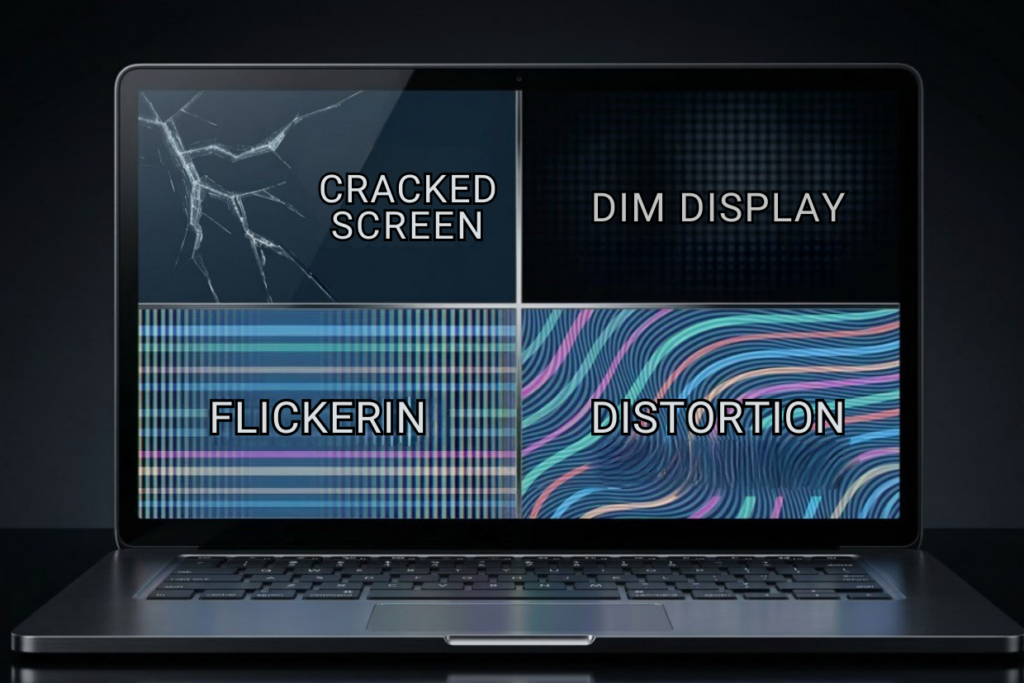
Laptop screen flickering manifests in several ways. You might see rapid brightness fluctuations, horizontal or vertical lines flashing across your display, the screen dimming and brightening repeatedly, or the entire display blinking on and off unpredictably. Each pattern tells a different story about what’s happening inside your device.
Why Flickering Is More Than Just Annoying
Screen flickering isn’t a cosmetic problem, it’s a warning signal. Constant flickering causes eye strain and kills productivity, making it impossible to focus on work. More importantly, it’s often a symptom of progressive hardware damage. That faulty connection or struggling graphics chip will only get worse. In worst cases, flickering precedes sudden crashes that risk unsaved data loss, or complete display failure.
Common Misconceptions About Laptop Screen Flickering
Most people jump to conclusions. “It’s just a loose cable” is common reasoning, but flickering can originate from a dozen different causes. Others believe “restarting will fix it”, sometimes true for temporary driver conflicts, but rarely a permanent solution. The most expensive misconception: “It’s always a screen replacement issue.” Many flickering problems are fixable without touching the display.
Understanding the Root Causes of Laptop Screen Flickering
Software-Related Causes
Outdated or Corrupted Display Drivers
Your GPU driver is the bridge between Windows and your display hardware. When drivers become outdated or corrupt, they lose communication with your graphics chip, causing the display to flicker erratically. Driver-specific flickering typically appears consistent, same pattern, same frequency, and often worsens after OS updates when driver compatibility breaks.
Operating System Compatibility Issues
Major OS updates frequently introduce display conflicts. The problem might be display scaling not matching your screen’s native refresh rate, or the operating system misconfiguring your graphics settings. You’ll notice flickering starts suddenly after updating Windows, and it affects multiple applications equally.
Application-Level Conflicts
Sometimes GPU-intensive background applications destabilize the graphics subsystem. Your Task Manager test reveals this: if Task Manager itself flickers, your hardware is struggling. If only other apps flicker while Task Manager stays stable, a software conflict is likely the culprit.
Hardware-Related Causes
Loose or Damaged Display Cable (LVDS/eDP Cable)
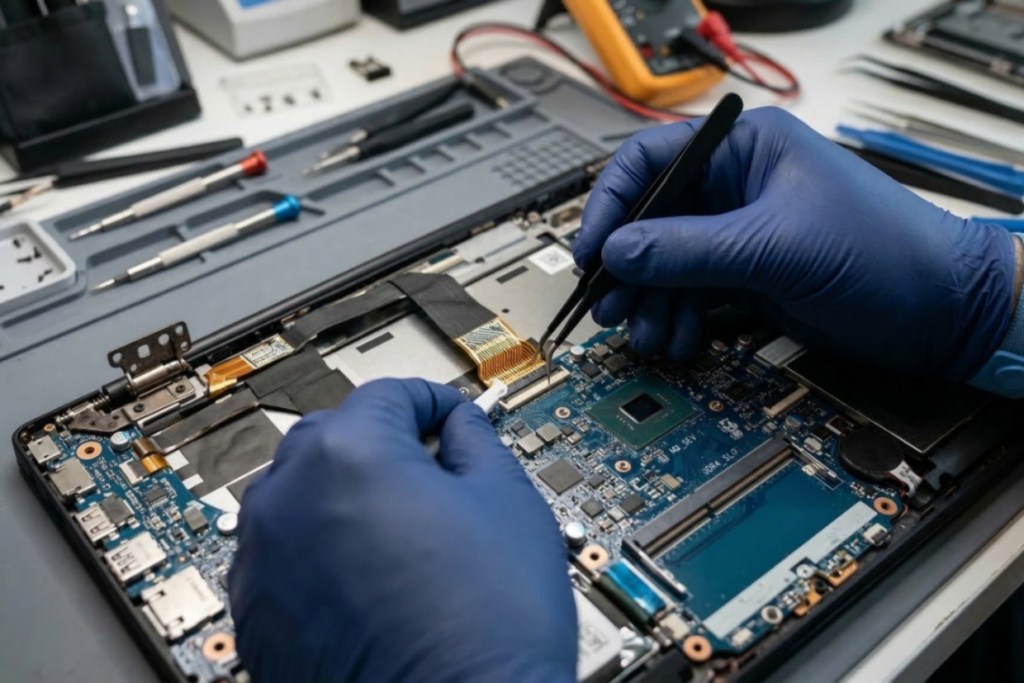
Laptops use ribbon cables connecting the motherboard to the display. When these cables loosen, often from hinge stress or accidental bumps, the signal degrades, causing intermittent flickering. A telltale sign: flickering gets worse when you adjust the screen angle, or you notice brief image loss when moving the laptop.
Failing LCD/LED Panel
Panels don’t fail gracefully. Progressive failure shows up as persistent horizontal or vertical lines, uneven brightness zones, or flickering confined to one area of the screen. Unlike software issues, panel failure is one-directional, it only gets worse.
GPU or Graphics Chip Failure
The graphics processor handles all display rendering. When it fails, often from heat stress or manufacturing defects, flickering affects everything sent to any display. The external monitor test is crucial here: if an external monitor also flickers, your GPU or motherboard is failing, not the screen itself. Overheating amplifies this symptom; you’ll notice flickering intensifies during gaming or heavy workloads.
Power Supply or Battery Issues
Unstable voltage causes electrical noise that manifests as flickering. If flickering appears only when unplugged, your battery is likely failing or your power adapter is delivering unstable voltage. When plugged in, the motherboard runs on stable mains power, unplugging switches to a degraded battery, and the voltage drops.
Environmental & Usage Factors
Dust accumulation in cooling vents causes thermal throttling, and overheating can destabilize the GPU and display circuits. Physical impacts to the hinge, excessive opening force, or high humidity environments accelerate component failure. Counterintuitive but important: extremely high brightness settings can stress the display backlight power circuit, contributing to flickering.
Step-by-Step Guide to Fix Laptop Screen Flickering
Step 1 – Perform Quick Isolation Tests
Restart the Laptop
Rebooting clears temporary driver states and resets hardware connections. This works because some flickering stems from driver memory leaks or transient GPU conflicts that disappear after a clean boot.
Open Task Manager Test
Press Ctrl+Shift+Esc to open the Task Manager. If Task Manager itself flickers, your hardware is the problem. If only your applications flicker while Task Manager stays stable, software is likely responsible. This single test eliminates half your variables immediately.
Connect to an External Monitor
If an external monitor displays stably, your internal screen or cable is failing. If both flicker, the GPU or motherboard is the culprit. This test takes 30 seconds and definitively narrows your diagnosis.
Step 2 – Fix Software Issues
Update Display Drivers Properly
Use Device Manager (right-click Start > Device Manager > Display adapters). Right-click your graphics card and select “Update driver,” then choose “Search automatically.” Alternatively, download directly from your GPU manufacturer (NVIDIA, AMD, Intel) for more control. Avoid beta drivers; stick to stable releases.
Roll Back Recent Driver Updates
If flickering started after a driver update, right-click your graphics card in Device Manager, select “Properties,” go to the “Driver” tab, and click “Roll Back Driver.” This often resolves conflicts introduced by buggy updates.
Adjust Refresh Rate Settings
Right-click your desktop > Display settings > scroll to “Advanced display settings” > “Refresh rate.” Select the highest available option that’s stable for your specific monitor. Mismatches between Windows settings and your panel’s native refresh rate cause consistent flickering.
Disable Problematic Startup Applications
Open Task Manager > Startup tab. Disable GPU-intensive applications (video editing software, streaming tools, mining programs). Restart and test if flickering improves.
Step 3 – Address Hardware Concerns
Check for Loose Display Connections (Advanced Users Only)
Only attempt this if you’re comfortable with laptop internals. Power off completely, unplug the battery, and remove your bottom panel (consult your specific model’s manual). Locate the display cable connecting to the motherboard and ensure it’s fully seated. This requires care; improper reconnection can permanently damage the connector. If you’re unsure, skip this step.
Clean Internal Cooling System
Dust accumulation causes thermal throttling. Use compressed air to blow dust from intake vents and cooling fans. Do this with the laptop powered off. Reduced overheating often stabilizes the GPU and display circuits.
Replace Screen Panel
If your external monitor test proved the GPU is healthy, but your internal screen flickers persistently, replacement is necessary. Costs range from SGD $150 – $450 depending on your laptop model. If your laptop costs SGD $650 new, replacement may not make financial sense.
When Motherboard or GPU Repair Is Required
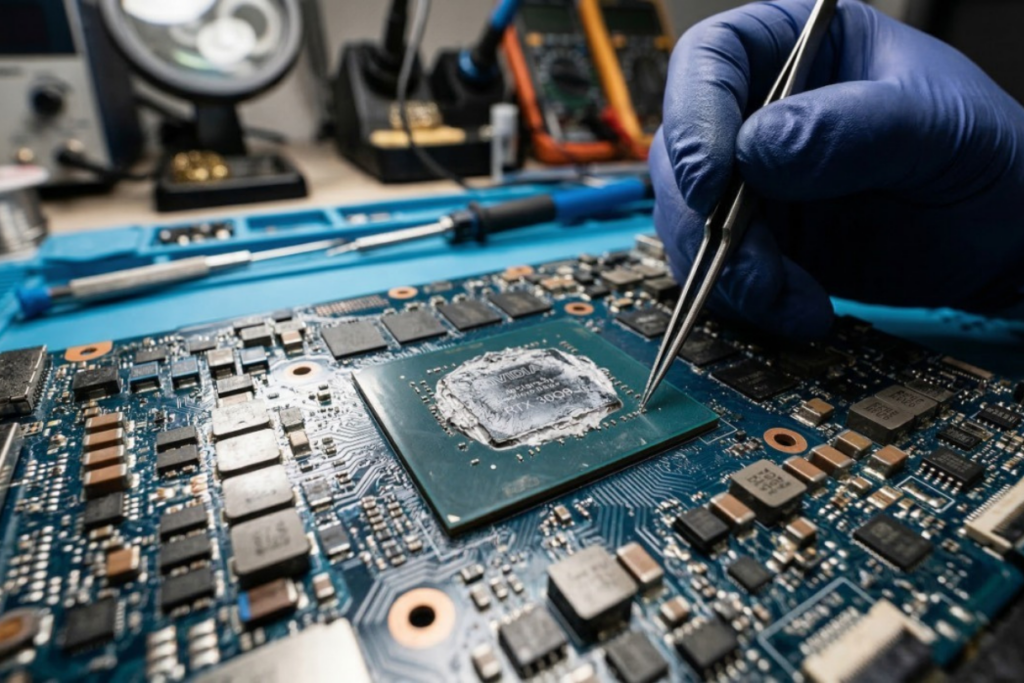
Visible damage, burning smells, or flickering on external monitors indicates motherboard-level failure. Professional repair often costs SGD $290 – $600+. Repair shops can attempt reflow techniques (heating solder joints), but success rates vary. Only pursue motherboard repair if your laptop has significant remaining value.
Step 4 – Prevent Future Laptop Screen Flickering
Use your laptop on hard, flat surfaces to avoid hinge stress. Never force the screen open. Keep drivers updated (using stable versions). Use a reliable power adapter, cheap aftermarket adapters deliver unstable voltage. Handle the display hinge gently; it’s the most failure-prone mechanical component on most laptops.
Quick Diagnostic Reference
| Symptom | Likely Cause | First Action |
| Flickering starts after driver update | Corrupted driver | Roll back driver |
| Flickers only when unplugged | Battery or power issue | Test with different charger |
| Flickers when opening/tilting screen | Loose display cable | Avoid extreme angles; consider repair |
| Consistent lines or uneven brightness | Failing display panel | Prepare for replacement |
| Task Manager flickers too | GPU/motherboard failure | Connect external monitor to confirm |
| Flickers during gaming/high load | GPU overheating | Clean cooling vents |
Edge Cases & Advanced Scenarios Most Guides Ignore
Flickering Only in Safe Mode
If Safe Mode is flicker-free but normal mode flickers, a startup application or background service is responsible. Disable startup apps systematically until flickering stops.
Flickering After a Drop or Liquid Exposure
Internal corrosion from moisture is progressive and often invisible. Your laptop may work now but fail within weeks. Get professional inspection; internal corrosion can’t be fixed reliably.
Flickering During Gaming or High GPU Load
Gaming stresses your GPU’s VRAM and thermal limits. If flickering appears only under load, your GPU is failing gradually or overheating critically. Monitor temperatures using HWiNFO64; GPUs should stay below 80°C.
Intermittent Flickering That Comes and Goes
Intermittent failures are early warnings of component degradation. A part is failing gradually. Performance will degrade over weeks. Don’t delay repair decisions if you need your laptop.
When to Seek Professional Diagnosis
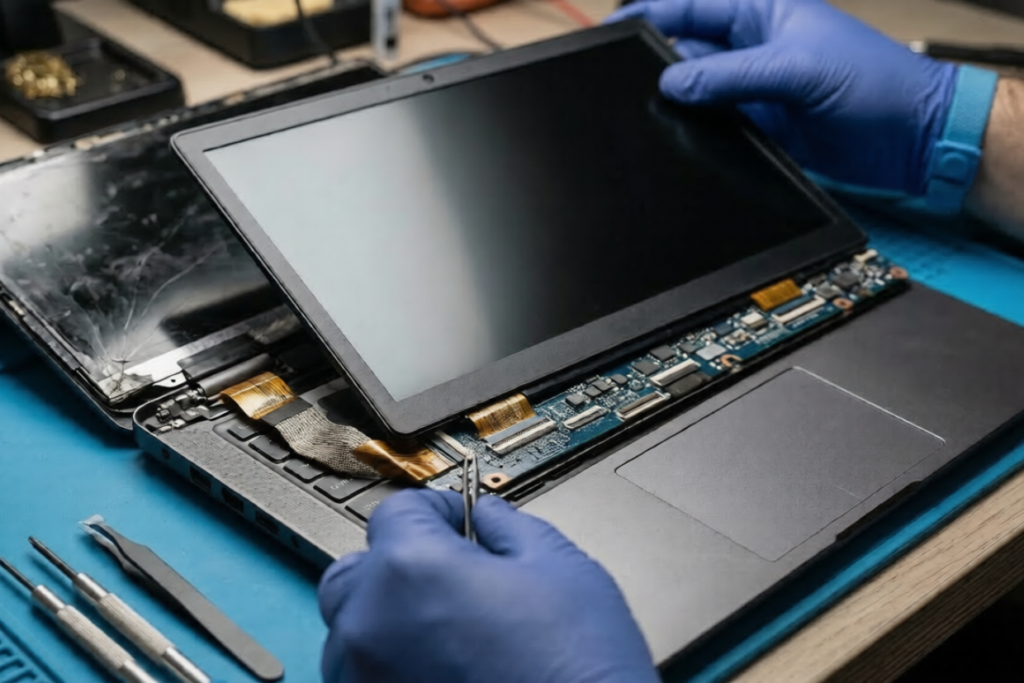
Stop DIY troubleshooting if you notice burning smells, sudden black screens, or repeated system crashes during flickering. These indicate imminent hardware failure.
Evaluate repair economics honestly. For devices over 5 years old or worth under SGD $450, replacement often makes more sense than a SGD $350+ repair. For newer, more expensive laptops, professional diagnosis is worthwhile. Reputable repair shops provide transparent assessments; if a technician immediately recommends replacement without diagnostic explanation, seek a second opinion.
Professional technicians run hardware diagnostics you can’t perform, including display signal integrity tests, GPU stress testing, and power circuit analysis. Expect a diagnostic fee of SGD $50 – $80; most shops credit this toward repairs if you proceed.
Conclusion: A Practical Framework for Solving Laptop Screen Flickering
Laptop screen flickering stems from both software and hardware causes, and distinguishing between them is your first priority. Systematic isolation through the tests outlined above prevents costly, unnecessary screen replacements.
Your external monitor test is the single most powerful diagnostic tool. Task Manager’s stability tells you whether software or hardware is responsible. Rolling back drivers fixes many cases, but hardware-related flickering requires different solutions.
Don’t delay addressing hardware problems; they worsen predictably. A loose cable eventually fails completely. An overheating GPU progressively degrades. Screen panels don’t recover.
By following this framework, isolation, targeted fixes, and honest cost evaluation, you’ll make informed repair decisions rather than guessing. You’ll also avoid the most expensive mistake: replacing a SGD $150 display to fix a SGD $10 driver update problem.