

Sudden Drain or Gradual Decline? Two Different Problems
If your laptop suddenly doesn’t last as long as it did last week, that’s a different problem from a battery that’s been quietly getting worse for months. A sudden drain usually points to something you can fix today: a setting, a runaway background process, a driver issue. A gradual decline, spread out over many months or years, is more often a sign that the battery itself is simply ageing, a natural process for any lithium-ion battery.
This distinction matters because it determines where to look first. This guide covers both: the fixable, immediate causes; the longer-term charging habits that protect battery health; and how to check definitively whether the battery itself is the problem.
Immediate Drain: What’s Using More Power Than It Should
Screen Brightness and Display Settings
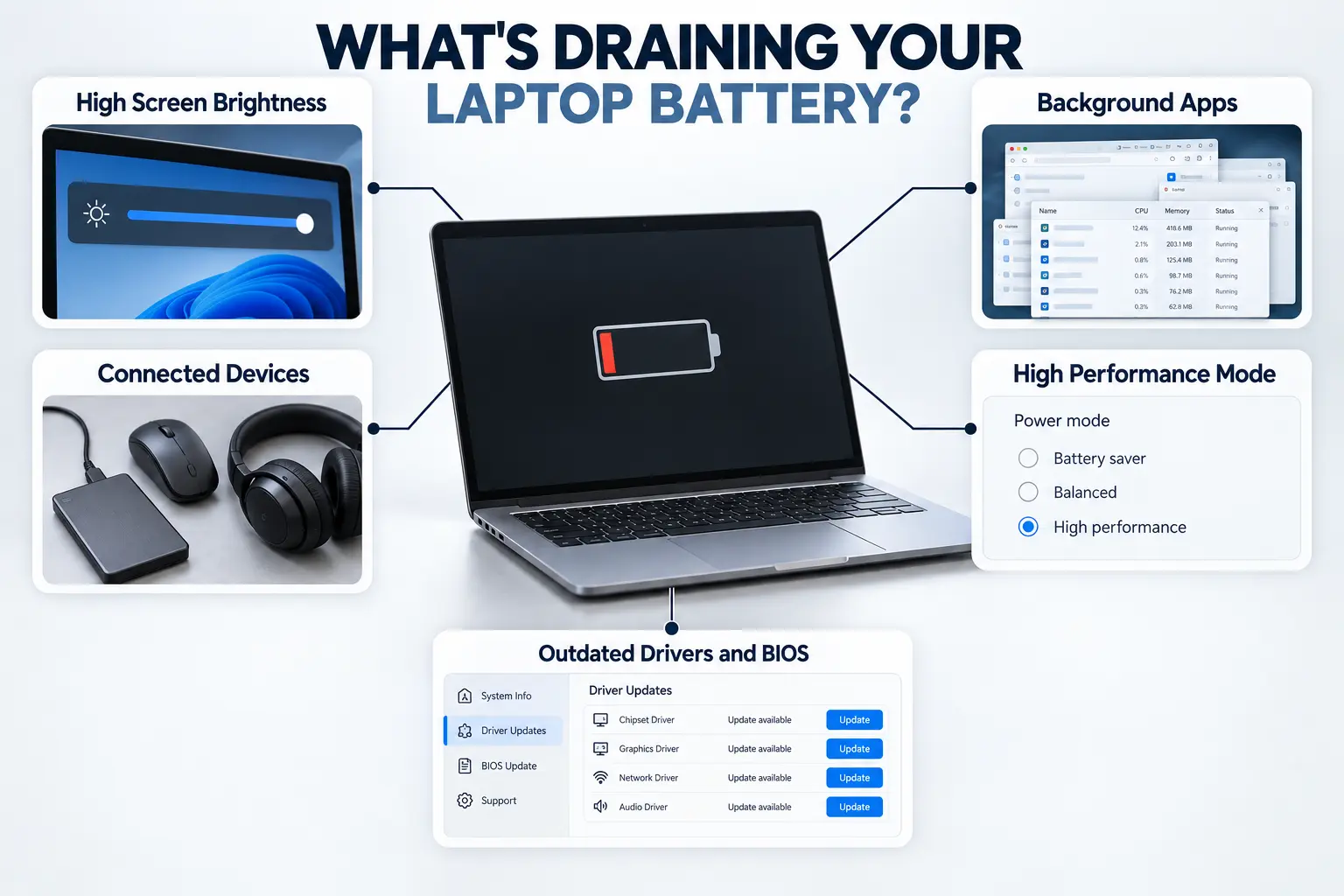
The display is typically the single biggest drain on a laptop’s battery. Running at maximum brightness, especially on a larger or higher-resolution screen, can noticeably shorten runtime. Turning on adaptive or auto-brightness, which adjusts based on ambient light, is one of the simplest changes that makes a real difference without you having to think about it constantly.
Background Apps, Processes and Browser Tabs
Applications and browser tabs running in the background continue drawing power even when you’re not actively using them. Windows Task Manager and macOS Activity Monitor both show which processes are consuming the most resources, making it straightforward to spot something unexpected: an app stuck in a loop, a sync tool running constantly, or simply too many browser tabs open at once.
Connected Peripherals and Wireless Radios
USB devices, Wi-Fi, and Bluetooth all draw power continuously while active, even if you’re not actively transferring data. If you’re not using a wireless mouse, external drive, or Bluetooth headphones at a given moment, disconnecting them, or switching off Bluetooth and Wi-Fi entirely when you don’t need them, can meaningfully extend a single charge.
Power Plan and Performance Mode Settings
Most laptops offer a choice between balanced and high-performance power modes. High-performance modes prioritise speed over battery life, often keeping the processor running faster than most everyday tasks require. Switching to a balanced or power-saving mode when you’re not doing demanding work is a simple, reversible way to extend runtime.
Outdated Drivers and BIOS
Outdated chipset or BIOS drivers can occasionally interfere with how efficiently a laptop manages power, leading to higher consumption than the hardware should need. Update steps vary by manufacturer and Windows version, so it’s worth checking your laptop maker’s official support site directly rather than relying on generic instructions that may not match your exact model.
Charging Habits That Protect Long-Term Battery Health
Why Staying at 100% (or Hitting 0%) Isn’t Ideal
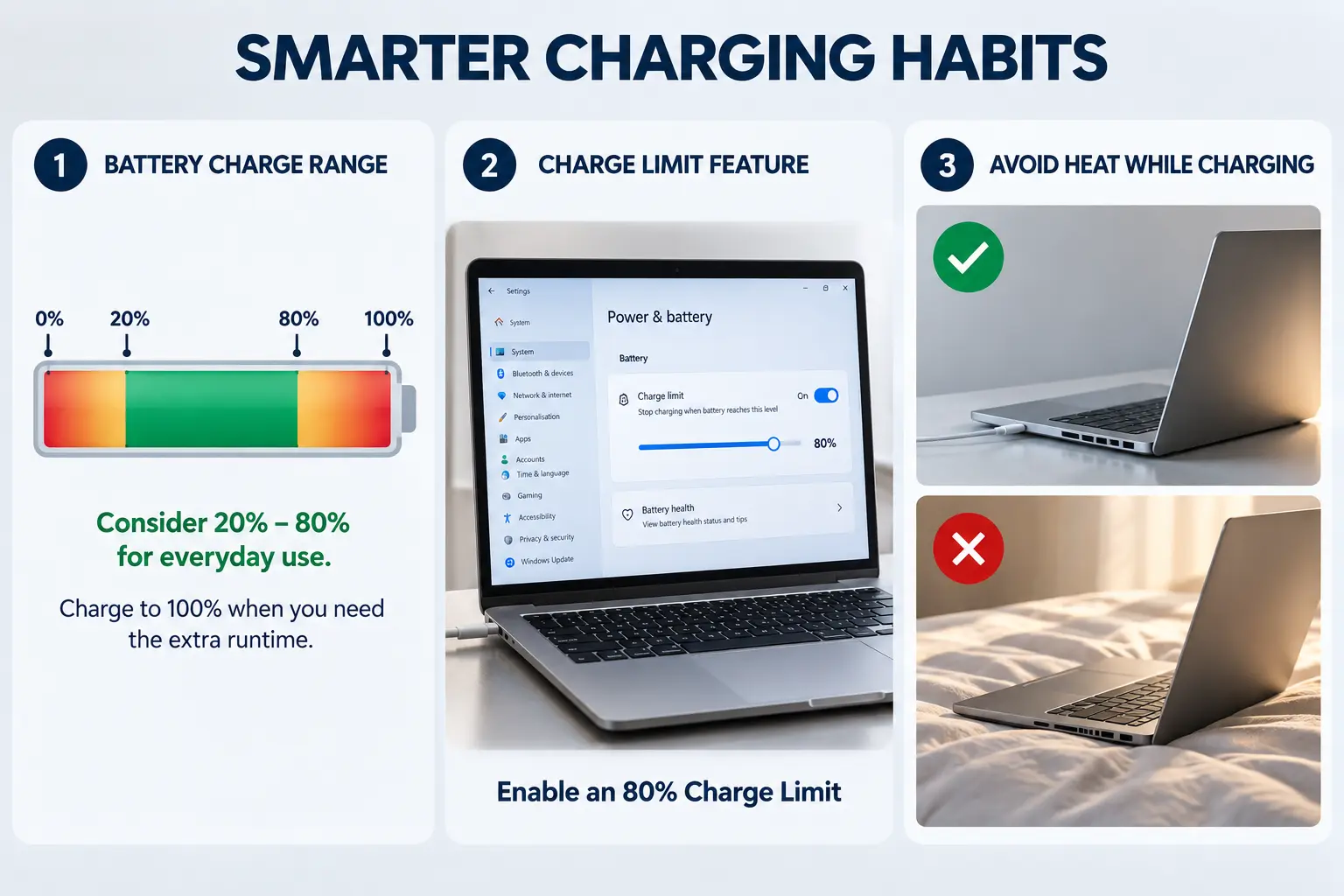
Lithium-ion batteries, the type used in virtually all modern laptops, degrade faster when kept at very high or very low states of charge for extended periods. Keeping a battery within a moderate range, broadly around 20% to 80%, rather than routinely charging to 100% or discharging close to empty, is a widely recognised principle for slowing long-term capacity loss. This doesn’t mean you should avoid ever charging to full when you genuinely need the runtime. Occasional full charges are fine, but making 100% your everyday habit accelerates wear over time.
Using Smart or Limited-Charging Features
Many modern laptops include a charge-limit setting, either built into the BIOS or accessible through a manufacturer’s companion app, that stops charging once the battery reaches a chosen threshold, commonly around 80%. Whether your laptop has this feature, and where it’s found, varies by brand: some put it in BIOS settings under Power or Battery, while others put it in an app such as a manufacturer’s power management software. Checking your laptop maker’s support documentation for your specific model is the most reliable way to find out.
Heat, Humidity and Battery Health in Singapore
Heat is one of the most significant factors in battery ageing, often more significant than charging habits alone. Direct sunlight, a hot car, and a soft surface like a bed or sofa that traps heat underneath (all covered in our guide to a slow laptop) raise a laptop’s internal temperature while charging, accelerating battery degradation. Singapore’s consistently warm ambient temperature year-round makes this a genuinely relevant local habit to watch, rather than a concern that only applies to hotter climates. Humidity plays a more indirect role; it’s a bigger contributor to corrosion around ports and connectors over time than to the battery cell itself, but it’s still a reason to avoid storing or charging a laptop in consistently damp conditions. Simple precautions, keeping the laptop out of direct sun and off heat-trapping surfaces while charging, go a reasonable way toward protecting long-term battery health.
How to Check If It’s Actually the Battery
Checking Battery Health on Windows
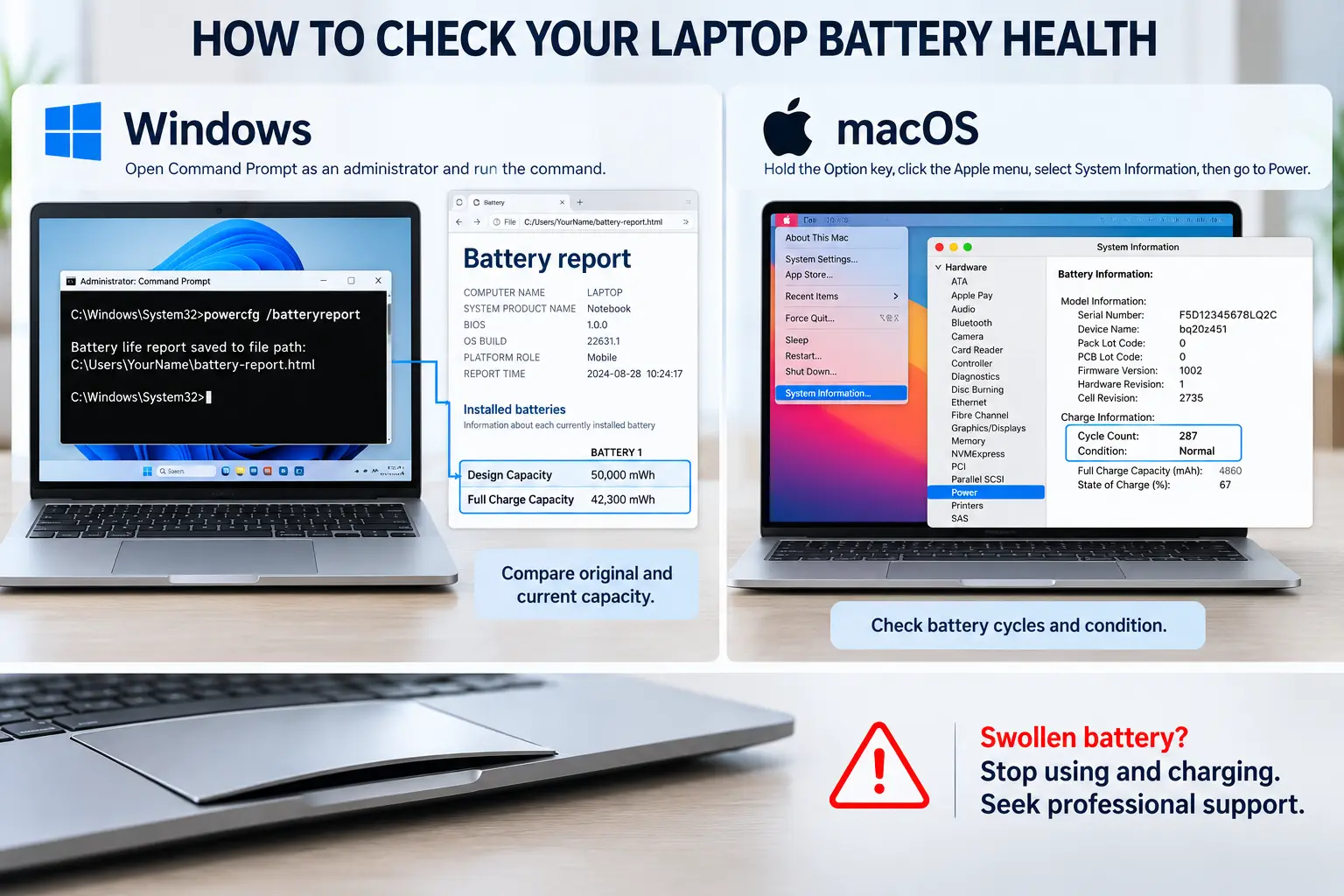
Windows includes a built-in tool for this. Opening Command Prompt as an administrator and running the command powercfg /batteryreport generates a detailed HTML report showing your battery’s original design capacity alongside its current full-charge capacity. Comparing these two figures gives a clear picture of how much capacity has genuinely been lost over time, rather than relying on how the battery feels day to day.
Checking Battery Health on macOS
macOS makes similar information available through System Information. Hold the Option key, click the Apple menu, select System Information, then go to Power under the Hardware section to see your battery’s cycle count and condition. A cycle count that’s approaching your specific model’s documented maximum, alongside a “Service Recommended” condition flag, is a reliable sign the battery has genuinely aged rather than simply being affected by a setting.
The table below summarises where to look on each platform.
| Platform | Where to check | What to look for |
| Windows | Command Prompt: powercfg /batteryreport | Design Capacity vs. Full Charge Capacity |
| macOS | Apple menu (Option-click) > System Information > Power | Cycle Count and Condition status |
Signs a Battery Needs Replacing
A battery that shows significantly reduced capacity relative to its original design capacity, particularly alongside a shorter runtime than you’d reasonably expect for its age, is a genuine candidate for replacement rather than further troubleshooting. Separately, and more urgently: a battery that appears swollen or visibly deformed, causing the trackpad or keyboard to bulge or sit unevenly, is a safety issue, not a performance one. Stop using the laptop immediately if you notice this, avoid charging it further, and have a professional handle it. Do not attempt to remove or puncture a swollen battery yourself.
When to Consider Replacement or Professional Support
Unlike most other laptop components, batteries are generally treated as a wear item, meaning warranty coverage is typically shorter than coverage for the rest of the laptop’s hardware. ABEX’s warranty terms, like most manufacturers’, cap battery coverage at a shorter period than general hardware coverage, so check before assuming a battery issue is automatically covered. If self-diagnosis points to genuine ageing rather than a fixable setting, checking your warranty status and, where relevant, extended warranty options is a sensible next step before paying for a standalone replacement.
Conclusion
Most sudden battery drain comes down to something fixable: a setting, a background process, or a habit worth adjusting, and the immediate fixes above are worth working through first. Battery ageing is a different, identifiable situation, one a simple capacity check on Windows or macOS can confirm rather than leave you guessing. Once you know which situation you’re actually in, the right next step, whether that’s adjusting a setting or looking at replacement, becomes a lot clearer.