

It Might Not Be What You Think: What’s Actually Happening When Your Laptop Overheats
The Symptom Most Gamers Misread: Thermal Throttling vs Performance Deficiency
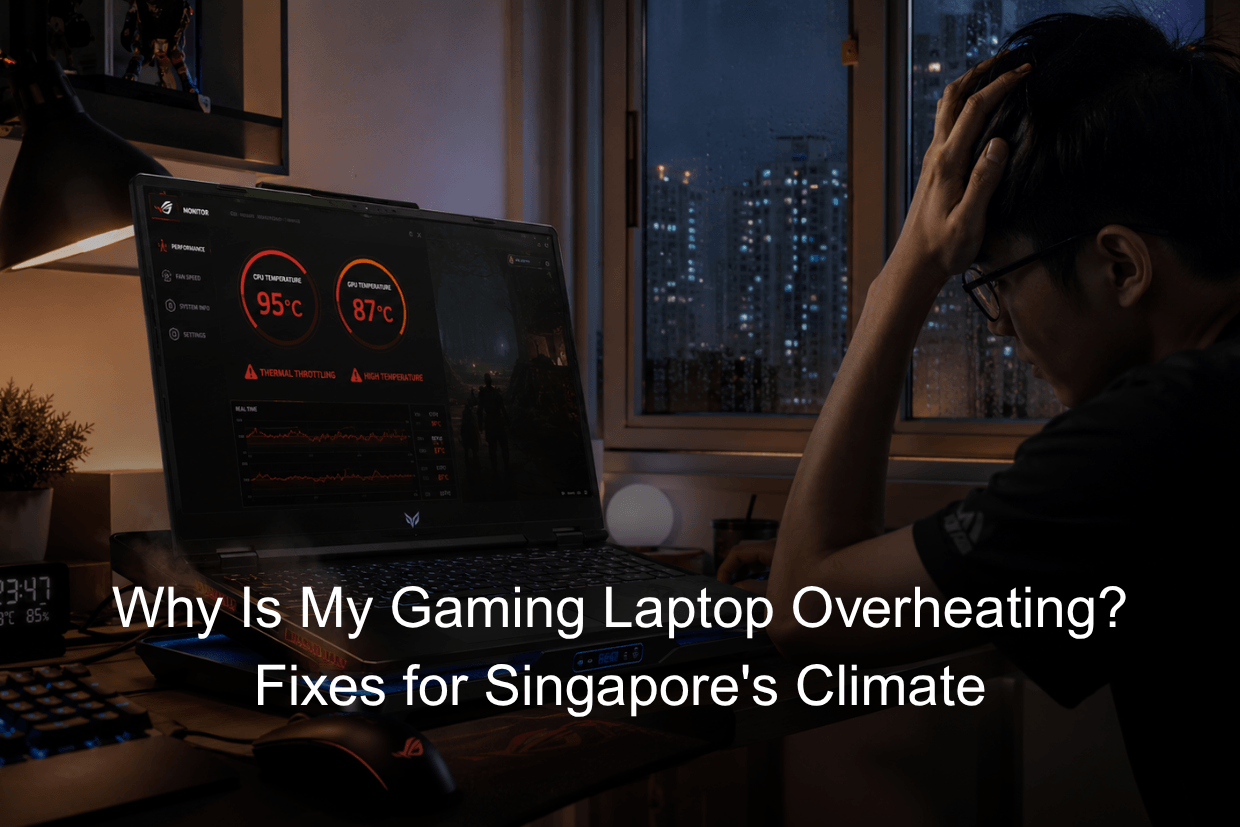
When the fps drops mid-session suddenly, the instinct is to blame the hardware. In most cases, the hardware is not struggling with the game. It is protecting itself from heat. This process is called thermal throttling: the processor deliberately reduces its own clock speed when temperatures exceed safe limits.
Upgrading to a more powerful laptop will not fix a thermal management problem. A faster chip generates more heat, which makes the underlying issue worse.
What Happens Inside a Gaming Laptop When Temperatures Get Too High
A gaming laptop moves heat through copper heat pipes to a heatsink, where fans push it out through exhaust vents. Every component has a thermal design power (TDP) limit representing the maximum heat the cooling system can handle sustainably. When gaming workloads exceed that limit, temperatures climb until the system throttles or shuts down.
The Temperature Ranges You Should Actually Know: What Is Safe and What Is Dangerous
CPU Temperature: What the Threshold Means and When to Worry
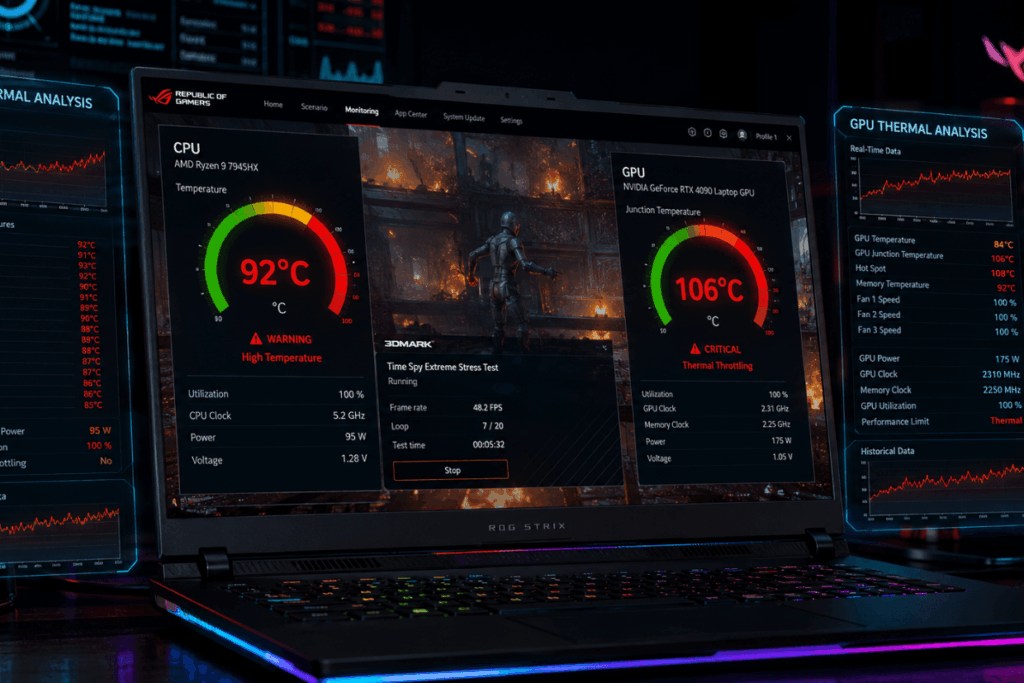
Most Intel and AMD gaming CPUs are rated to operate up to 95 to 100 degrees Celsius before throttling begins. A brief 95°C spike during a load burst is normal. Maintaining 92°C for 45 minutes per session is a maintenance issue.
GPU Temperature: How Different Card Generations Handle Heat
NVIDIA RTX series GPUs typically begin throttling between 83 and 87 degrees Celsius. Monitor both GPU core and GPU junction readings, as the junction reading gives a more accurate picture of real heat stress.
The Sustained High Temperature Problem: Short-Term vs Long-Term Impact
| Component | Safe Range | Warning Level | Critical Level |
| CPU (Intel/AMD) | Below 85°C | 85°C to 94°C | 95°C and above: throttling begins |
| GPU Core (NVIDIA RTX) | Below 80°C | 80°C to 86°C | 87°C and above: throttling begins |
| GPU Junction (NVIDIA RTX) | Below 95°C | 95°C to 107°C | 108°C and above: critical threshold |
Why Singapore’s Climate Makes Laptop Overheating Worse Than Anywhere Else
The Ambient Temperature Problem: What a 30 to 34 Degree Baseline Does to a Gaming Laptop’s Thermal Budget
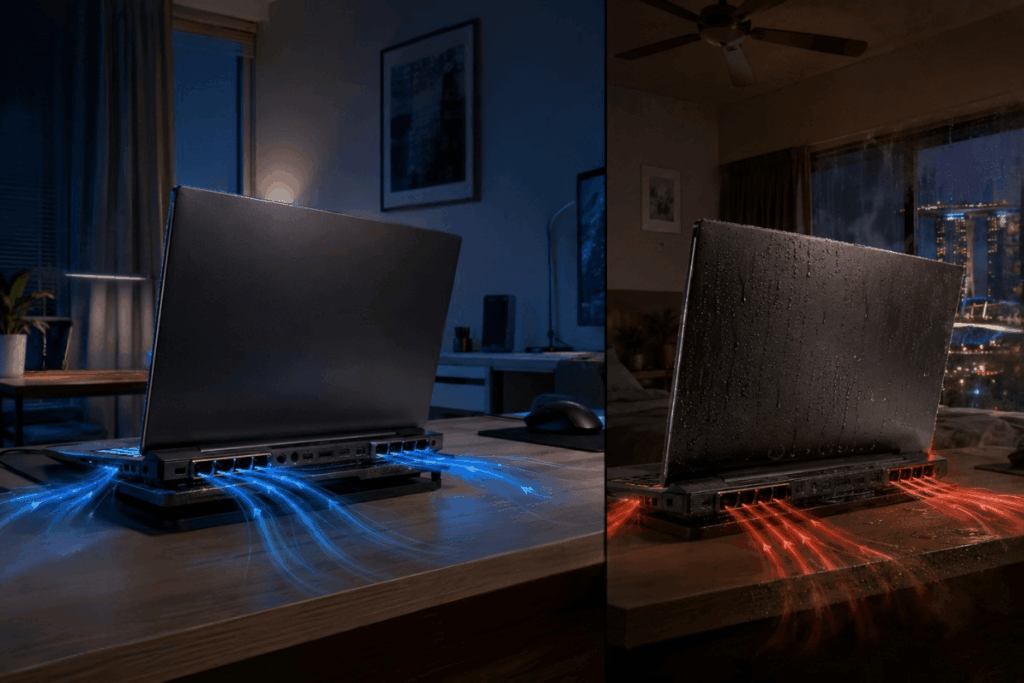
Gaming laptop cooling moves heat from the chip to the surrounding air. The chip can only cool to slightly above ambient temperature. In a 20°C room, a CPU has 75 degrees of headroom before reaching 95°C. In a 32°C Singapore bedroom, that shrinks to 63 degrees. The same session that produces stable readings in a temperate country will push your laptop 10 to 15 degrees higher locally.
How Humidity Affects Thermal Paste and Internal Airflow Over Time
Singapore’s sustained humidity causes thermal paste to break down faster than in dry climates and causes dust to accumulate more densely on fan blades and heatsink fins, restricting airflow far faster than in arid environments.
Why Guides Written for Temperate Countries Won’t Fully Solve Your Problem
A cooling pad delivering 5°C of reduction is meaningful at 20°C ambient. In a 32°C Singapore bedroom, the same accessory is insufficient unless the room temperature is addressed first.
Step 1: Quick Fixes That Take Under Ten Minutes
Check and Fix Your Ventilation Surface Immediately
Which Surfaces Block Gaming Laptop Vents and Why
Beds, sofas, and carpets block intake or exhaust vents. Move to a hard, flat surface immediately. Elevating the rear by 2 to 3 centimetres improves natural airflow and typically reduces readings by 5 to 10 degrees on its own.
The Positioning Adjustments That Reduce Temperature Immediately
Check which side your intake vents are on. Position the laptop so nothing covers those vents. Keep exhaust vents unobstructed by walls, monitors, or cables.
Close Background Processes That Generate Heat Without You Seeing Them
How to Identify Which Background Processes Are the Biggest Heat Contributors
Open Task Manager during gaming and sort by CPU and GPU usage. Discord video encoding, Windows Update, antivirus scans, and OneDrive sync are the most common hidden contributors.
Windows Settings That Run Hot Without Being Obvious
Schedule Windows Search Indexing for overnight. Disable game DVR recording if unused, as background video encoding adds consistent GPU load throughout every session.
Check Your Power Mode and Performance Settings
How Windows Power Mode Affects Thermal Load
High Performance mode runs the CPU at maximum clock speed regardless of workload. In Singapore’s ambient heat, this pushes readings into throttling territory on tasks that would be manageable in cooler conditions.
The High Performance vs Balanced Trade-Off in Singapore’s Ambient Conditions
Balanced mode reduces heat output by 8 to 12 degrees on many configurations without a perceptible fps loss in non-competitive gaming. Manufacturer software such as ASUS Armoury Crate, Lenovo Vantage, and MSI Centre offer finer control than Windows power modes.
Step 2: Environmental Fixes Specific to Singapore’s Climate
The Room Temperature Threshold Below Which Gaming Becomes Thermally Safe
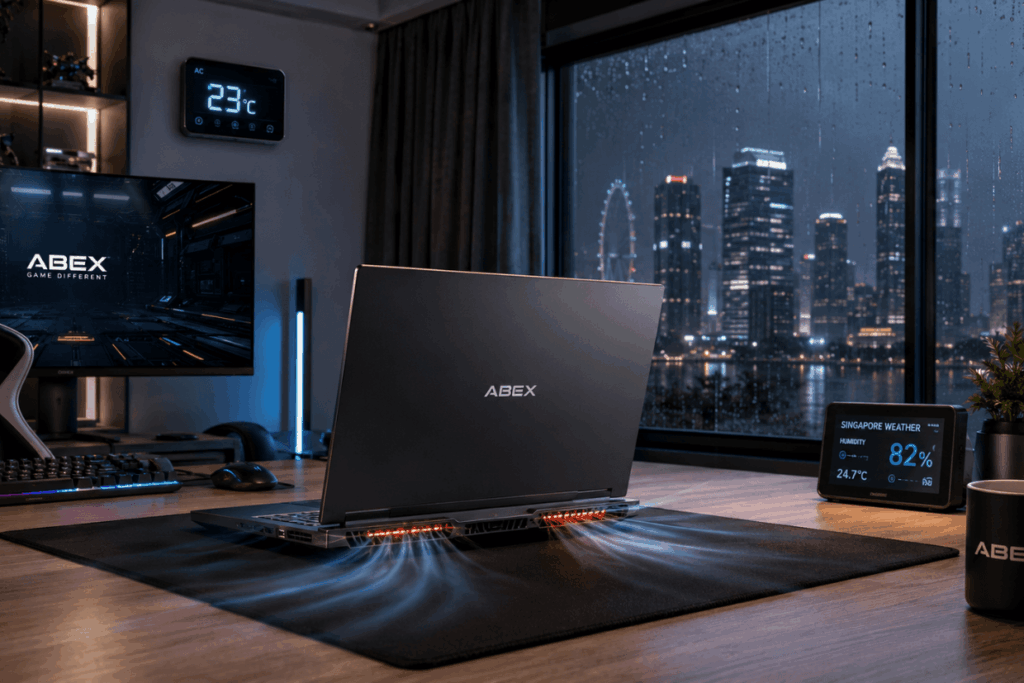
Gaming in an air-conditioned room at 23°C versus a bedroom at 31°C can represent 10 to 15 degrees of difference in sustained readings. Room cooling is part of the heat management system, not optional comfort.
How Air Conditioning Position and Airflow Affect Laptop Cooling Efficiency
Position the laptop where ambient air is cooled but not directly in the airstream. Direct airflow onto the laptop risks condensation on internal components.
Why Rainy Season vs Dry Period Affects Laptop Temperature Differently
During monsoon periods, humidity regularly exceeds 85%, accelerating dust adhesion on fan blades and heatsink fins. Clean your vents more frequently during and after the monsoon season.
What Surface and Desk Setup Keeps Temperatures Lowest
Non-metal surfaces, such as wood and glass, do not get as hot in Singapore’s ambient heat as metal surfaces do, keeping the area around the laptop slightly cooler. Keep the space around exhaust vents clear.
Step 3: Cooling Accessories That Actually Help and the Ones That Don’t

Cooling Pads: What They Do, What They Cannot Do, and Which Designs Work in Singapore
The Right Cooling Pad Positioning for Gaming Laptops With Bottom Vents
Cooling pads with upward-facing fans only help laptops with bottom intake vents. A pad matched to a side-intake or rear-intake laptop adds noise without reducing heat. Check your intake vent position before buying.
Cooling Pads vs Laptop Stands: Which Reduces Temperature More
The realistic heat reduction from a well-matched cooling pad in Singapore is 3 to 8 degrees. A passive stand with proper elevation can produce similar results without the noise.
Laptop Stands and Elevation: Why Airflow Under the Laptop Matters
Any elevation creating a gap of 2 centimetres or more under the chassis produces a meaningful improvement in airflow and sustained readings.
External Keyboard and Mouse: Why Removing Your Hands From the Keyboard Affects Heat
Hands resting on the keyboard reduce the chassis’s ability to radiate heat from the top surface. An external keyboard and mouse produce a modest but genuine benefit during long sessions.
What Cooling Accessories Cannot Fix and What That Tells You
If readings stay dangerously high after all accessories have been tried, the problem is internal: dust blockage, thermal paste degradation, or fan failure. Buying better accessories is a diminishing returns strategy when maintenance is the real fix.
Step 4: Software-Level Fixes That Reduce Thermal Load Without Losing Performance
GPU Optimisation Settings in Your Game and Driver Software
How Frame Rate Caps Reduce GPU Temperature During Extended Sessions
An uncapped frame rate forces the GPU to render as fast as possible, even when 200 fps serves no practical purpose. Capping the monitor’s refresh rate in the NVIDIA App or in-game settings significantly reduces GPU load during long sessions.
NVIDIA Whisper Mode and Similar Power Management Features
NVIDIA Whisper Mode limits GPU power draw to keep heat output and fan noise within a defined range. ASUS, MSI, and Lenovo software offer similar profiles well-suited to Singapore’s ambient conditions for casual gaming.
Undervolting Your CPU: What It Is and Whether It Is Safe in Singapore
What Undervolting Does to CPU Temperature and Performance
Undervolting reduces the voltage supplied to the CPU without reducing clock speed. A successful undervolt typically reduces CPU heat output by 5 to 15 degrees, which in Singapore’s climate can resolve sustained throttling.
How to Check Whether Undervolting Will Affect Your Laptop’s Warranty
Several ASUS and HP models from 2022 onward have had undervolting locked via BIOS updates. Check your model’s BIOS and warranty terms before using Intel XTU or ThrottleStop.
In-Game Settings That Meaningfully Reduce GPU and CPU Load
Ray tracing, ambient occlusion, and resolution scaling have the highest thermal cost relative to visual quality. Reducing these first produces the greatest heat reduction for the least noticeable visual impact.
Step 5: Hardware-Level Maintenance That Most Gamers Skip

Why Dust Accumulation in Singapore’s Humid Air Is a Bigger Problem Than in Other Countries
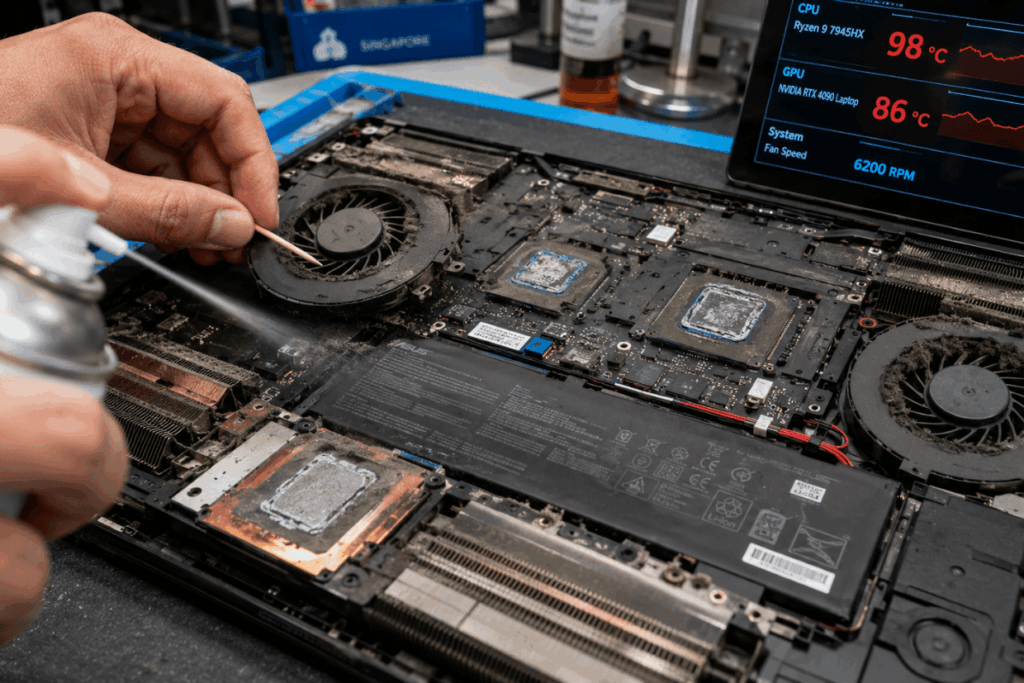
Singapore’s humidity makes dust stickier and heavier, causing denser build-up on fan blades and heatsink fins. A fully clogged heatsink can raise sustained readings by 15 to 25 degrees. A laptop that ran cool 18 months ago and now overheats has almost certainly accumulated significant internal dust.
How to Clean Your Gaming Laptop’s Vents and Fan Assembly Safely
What Tools Are Needed for Safe External Cleaning
Use short bursts of compressed air held 10 to 15cm from the vent. Hold the fan blade in place with a toothpick to prevent it from spinning freely under air pressure, which damages the bearing. External cleaning clears exhaust areas but does not reach internal heatsink fins.
When Cleaning Requires Opening the Laptop and What That Means for Warranty
Most ASUS ROG, Lenovo Legion, and MSI models allow bottom panel removal without voiding the warranty. Check your specific model’s service manual before opening.
Thermal Paste Degradation: How Singapore’s Humidity Accelerates the Problem
What Thermal Paste Does and Why It Degrades Faster in Humid Climates
Thermal paste fills microscopic gaps between the CPU die and heatsink to maximise heat transfer. In Singapore’s humidity, standard paste degrades due to moisture absorption over 18 to 24 months, rather than the 3 to 4 years typical in drier climates.
When Thermal Paste Replacement Is the Fix and Who Should Perform It
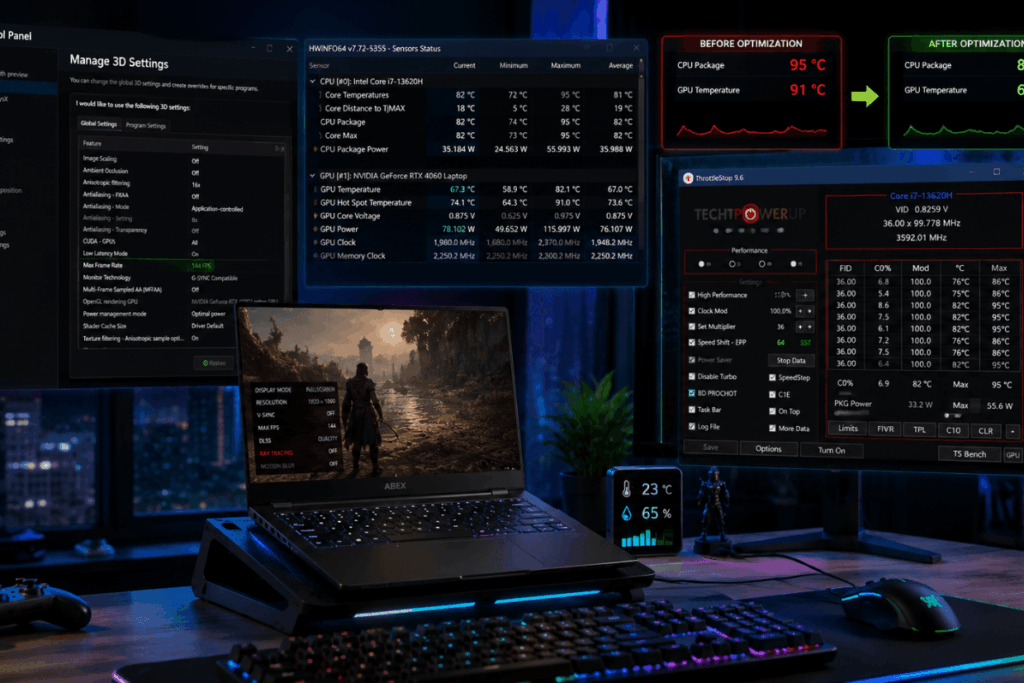
If your laptop runs 15 to 20 degrees hotter than it did two to three years ago under identical conditions, paste replacement is the likely fix. Use HWiNFO64 to verify readings before and after. Those unfamiliar with internal hardware should use an authorised service centre.
When to Suspect the Fan Has Failed or Is Failing
Changed pitch, grinding noise, or intermittent operation all indicate fan failure. Readings rising unusually fast, even with clean vents, confirm the fan is not moving adequate airflow.
When DIY Fixes Are Not Enough: Signs You Need Professional Servicing
The Temperature Readings That Indicate a Hardware Problem Beyond User Control
If readings remain above critical thresholds after cleaning, paste replacement, and software optimisation, suspect a component fault: failed sensor, delaminated heatsink contact, or voltage regulator overheating.
Recurring Shutdowns After Trying All User-Level Fixes: What This Means
Stop using the laptop for intensive gaming until the fault is diagnosed. Continued high-load use risks permanent damage to the CPU, GPU, or motherboard.
How Singapore’s Authorised Service Centres Handle Gaming Laptop Overheating
Service centres typically perform a thermal stress test, inspect fan operation, measure heatsink contact quality, and replace paste as part of a standard overheating assessment.
What to Tell a Technician When You Bring in an Overheating Gaming Laptop
Provide your peak and sustained readings from monitoring software, the ambient room temperature during overheating, how long until throttling begins, and what maintenance steps you have already completed.
Preventing Overheating Long-Term: A Maintenance Schedule for Singapore’s Climate
Monthly Habits That Keep Temperatures in Check
Run a temperature check during a gaming session and note any change from last month’s baseline. Clean accessible vents with compressed air. Confirm scheduled tasks are running outside gaming hours.
Quarterly Maintenance Tasks for Singapore’s Humid Environment
Perform a thorough external clean of all vent surfaces. Review GPU and CPU driver versions for updates that include heat management improvements. Reassess power profiles for the current season.
How to Use Temperature Monitoring Software to Catch Problems Early
Which Temperature Monitoring Tools to Use and What to Look For
HWiNFO64 shows individual CPU core readings, GPU core and junction values, and fan speeds simultaneously. Run it in the background and review the session log after gaming.
Setting Up Alerts Before Temperatures Reach Dangerous Levels
Set a CPU alert at 90°C and a GPU junction alert at 100°C in HWiNFO64. These warn you before critical levels rather than after throttling has already begun.
How retailers should approach thermal performance when selecting gaming laptops for the Local Market
Abex is one example of a Singapore gaming laptop retailer that considers heat management performance when selecting models for the local market, rather than relying solely on benchmark scores from international reviews conducted in cooler environments.
Conclusion
Gaming laptop overheating in Singapore is driven by reduced thermal headroom from high ambient temperatures, faster dust accumulation from humidity, and thermal paste degradation on a shorter timeline than international guides suggest. The five-step fix hierarchy is: fix ventilation surface and position, address room temperature, match cooling accessories to your laptop’s vent design, apply software optimisations including frame rate caps and power profiles, and perform hardware maintenance starting with cleaning and paste replacement. HWiNFO64 monitoring and a quarterly maintenance schedule calibrated for Singapore’s conditions are the most practical long-term prevention tools available.